Install the Ziply plugin in Claude
Add the Ziply plugin to Claude and connect it to your Ziply account in a few minutes.
On this page
Before you start
- Have a Claude account. The free plan is enough.
- Keep your Ziply account email and password ready.
- You do not need a GitHub account.
Where it works
- Claude on the web, desktop, and mobile
- Claude Cowork
- Claude Code
In Claude Cowork and Claude Code, type a command from the table under Using the plugin. Add the connector on the Connectors tab.
-
01Sign in to Claude
Go to claude.ai and sign in with your preferred method.
Optional: if you are already signed in, skip this step.
-
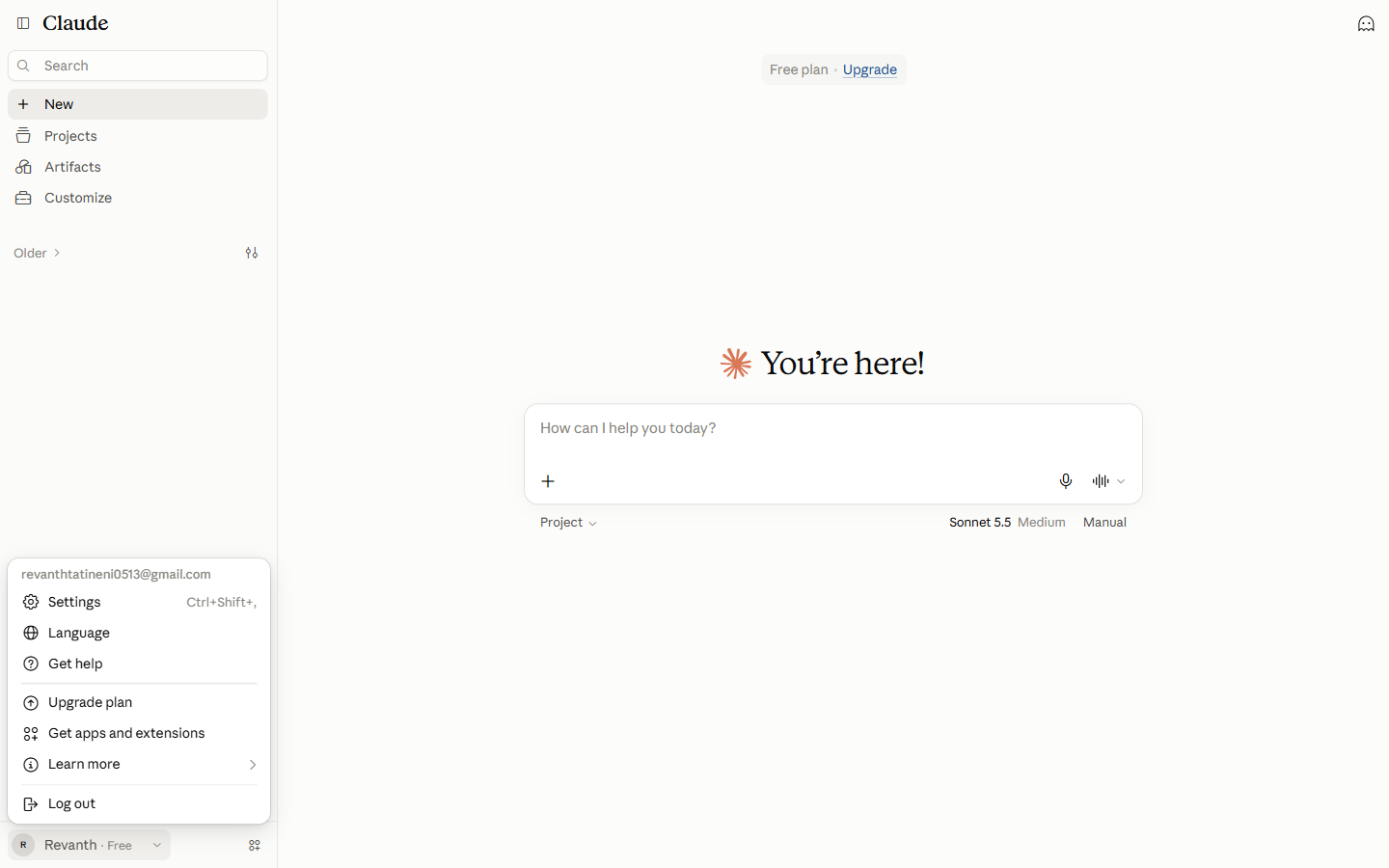
02Open Settings
Click your name at the bottom left. Then click Settings.
-
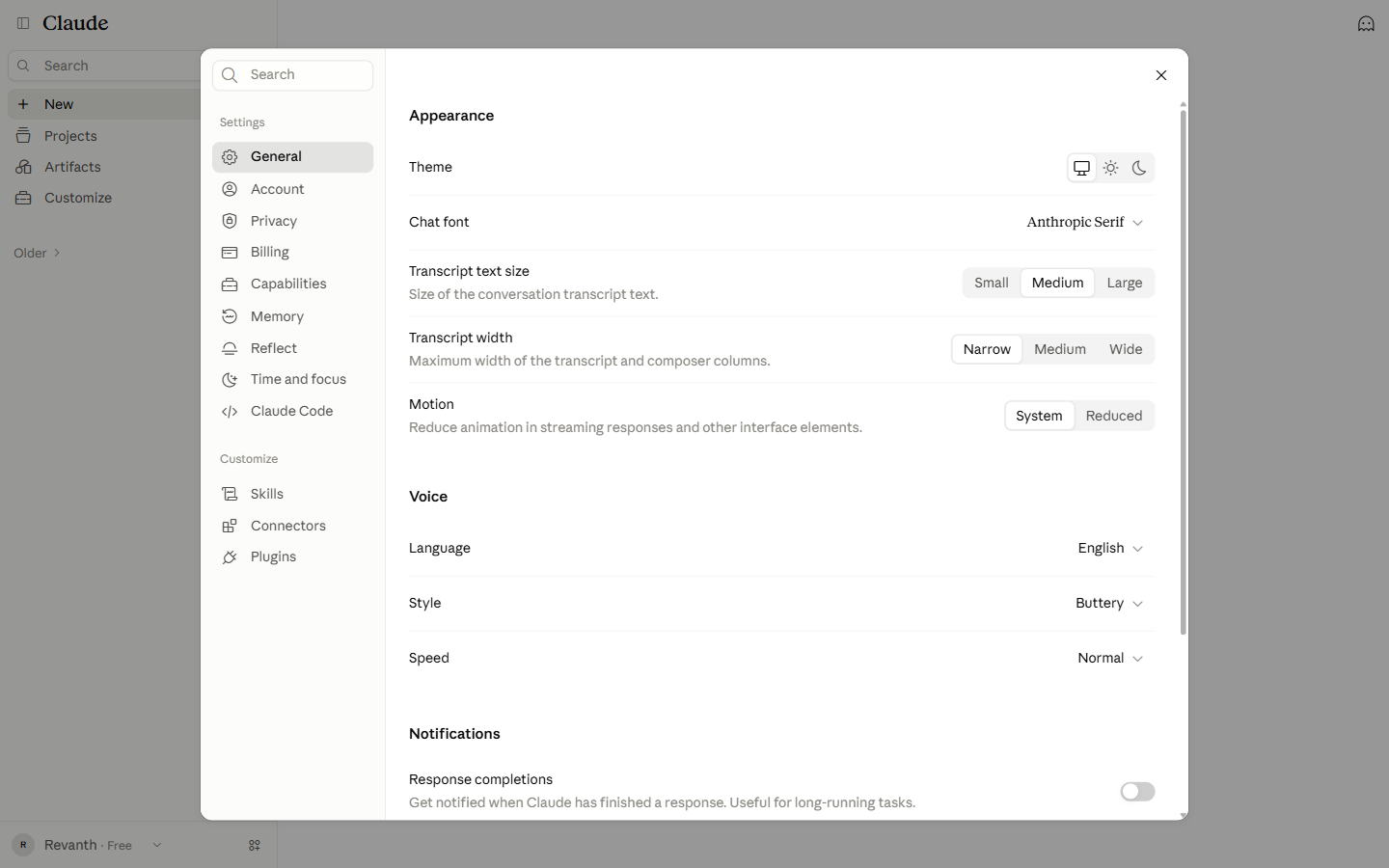
03Open Plugins
Click Plugins under Customize in the left sidebar.
-
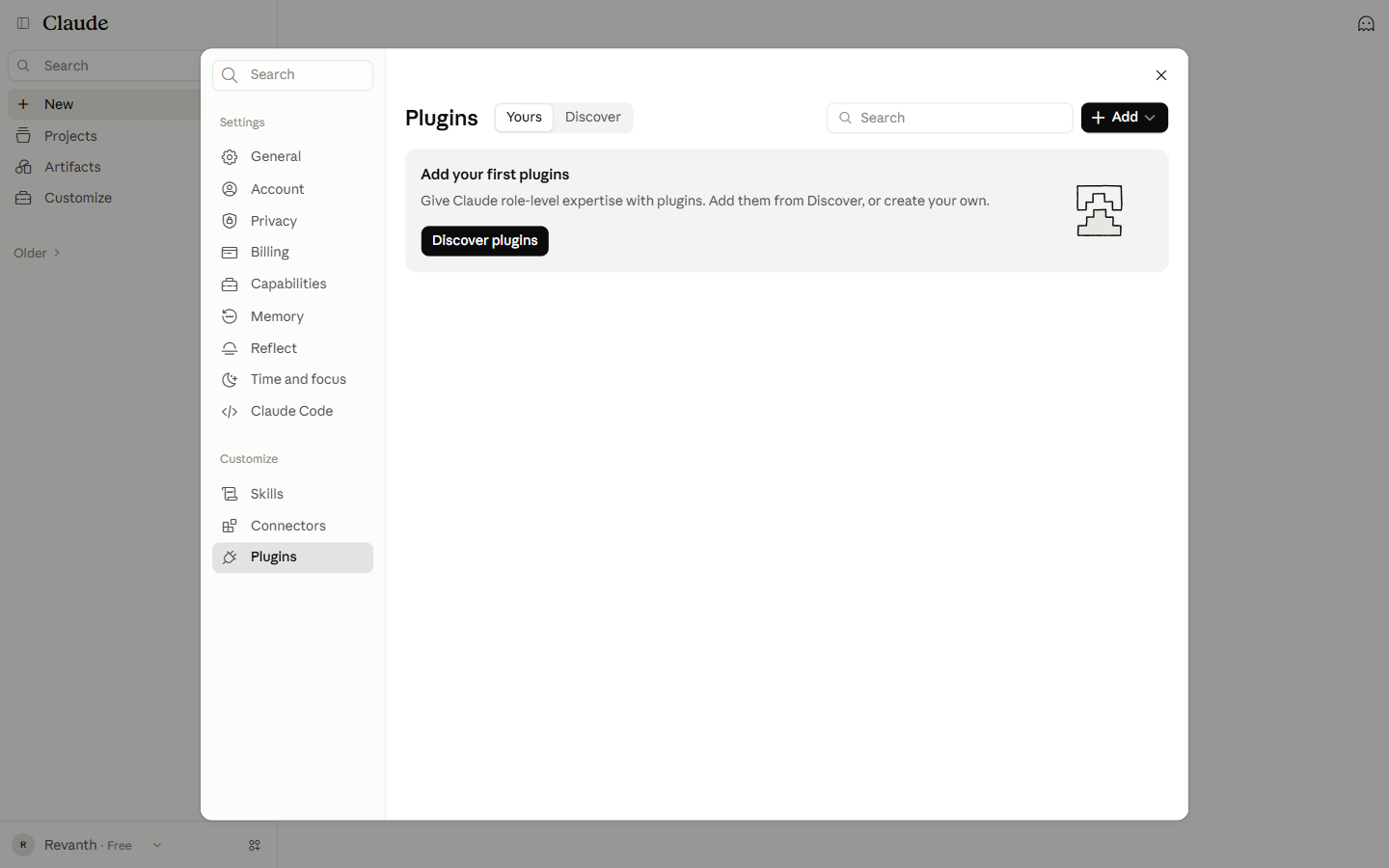
04Click Add
Click Add at the top right.
-
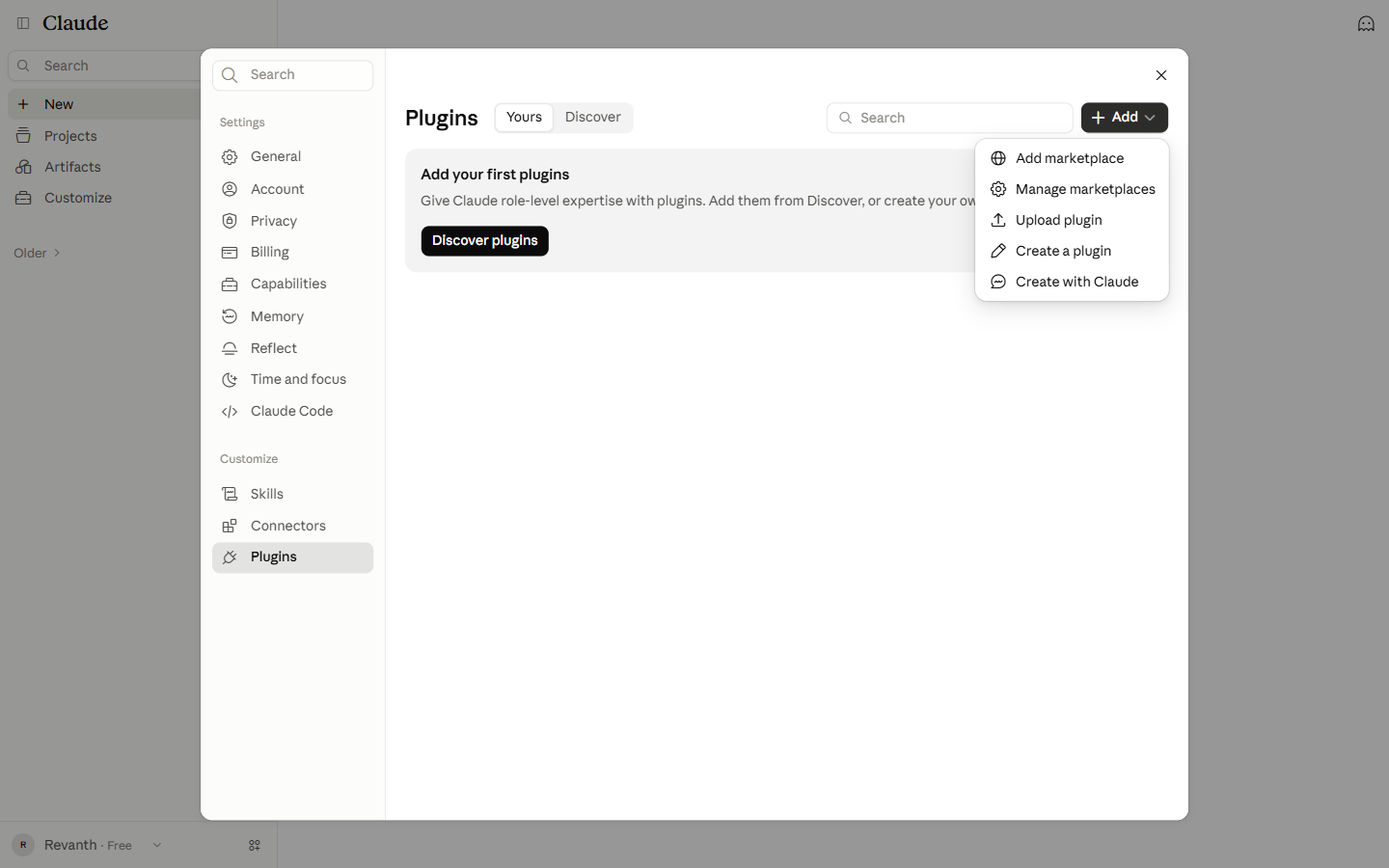
05Click Add marketplace
Click Add marketplace in the menu.
-
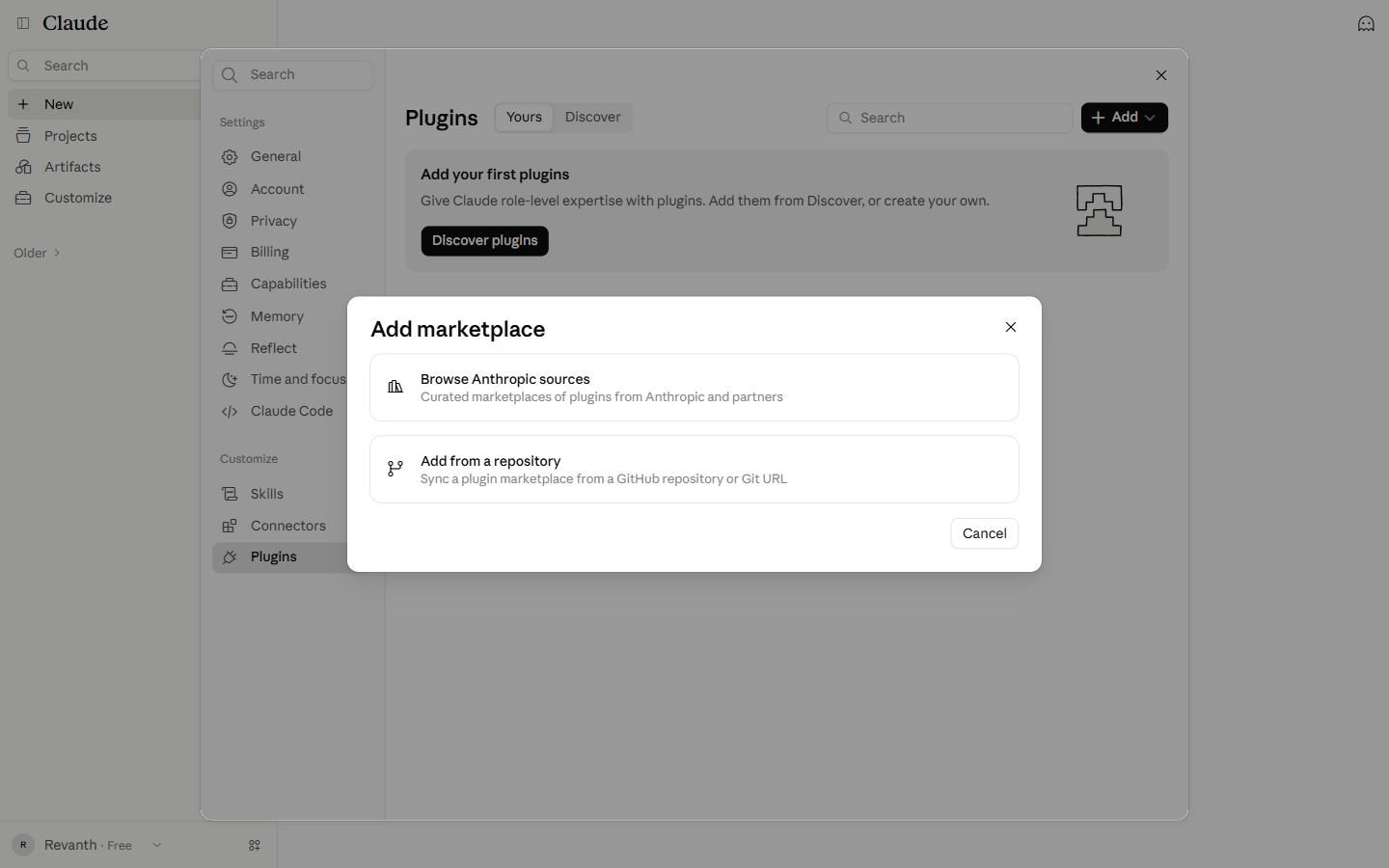
06Click Add from a repository
Click Add from a repository. A warning explains that plugins from marketplaces are not controlled by Anthropic. This is expected.
-
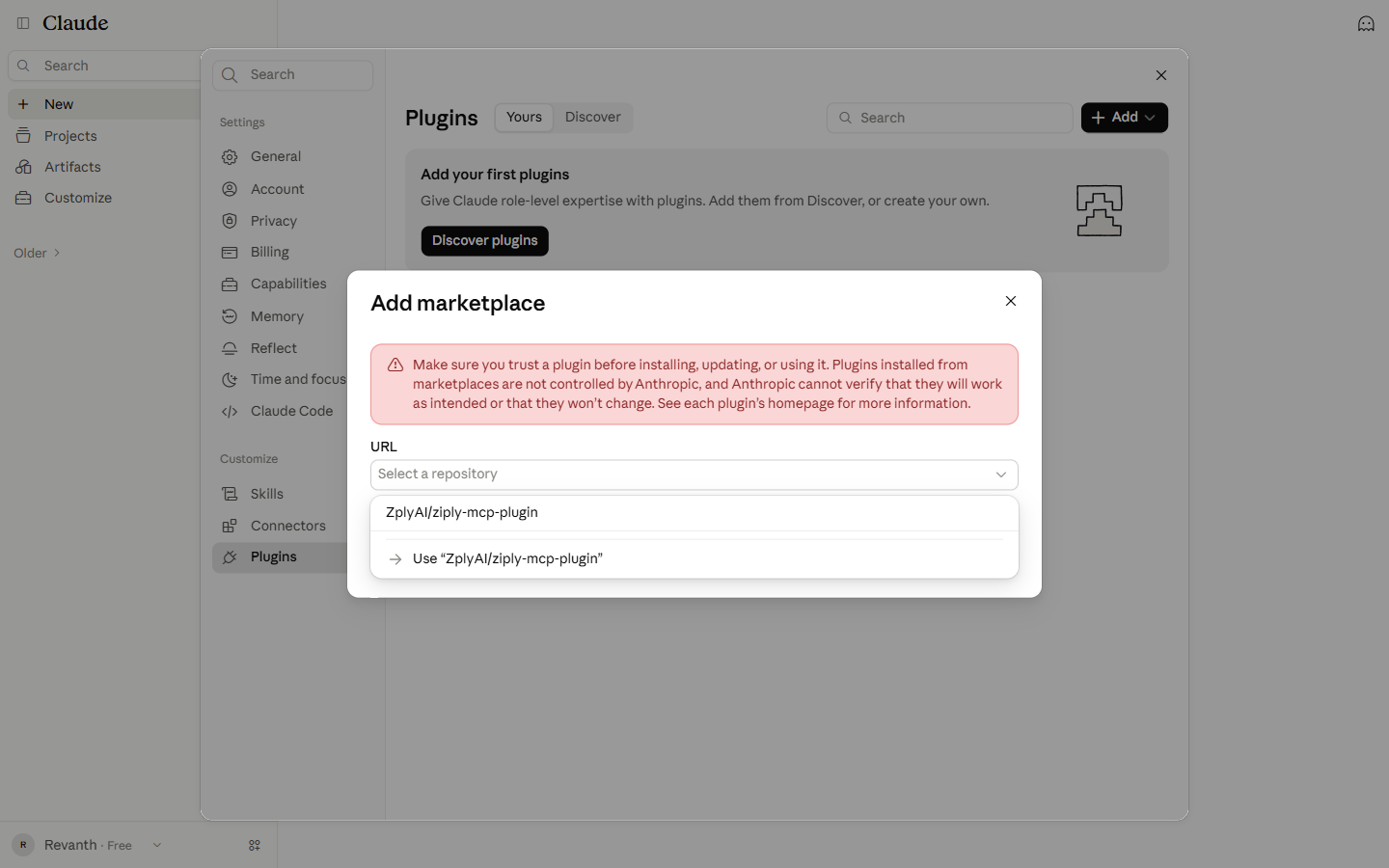
07Enter the repository
Click the URL field and paste this.
ZplyAI/ziply-mcp-pluginThen click Use "ZplyAI/ziply-mcp-plugin".
-
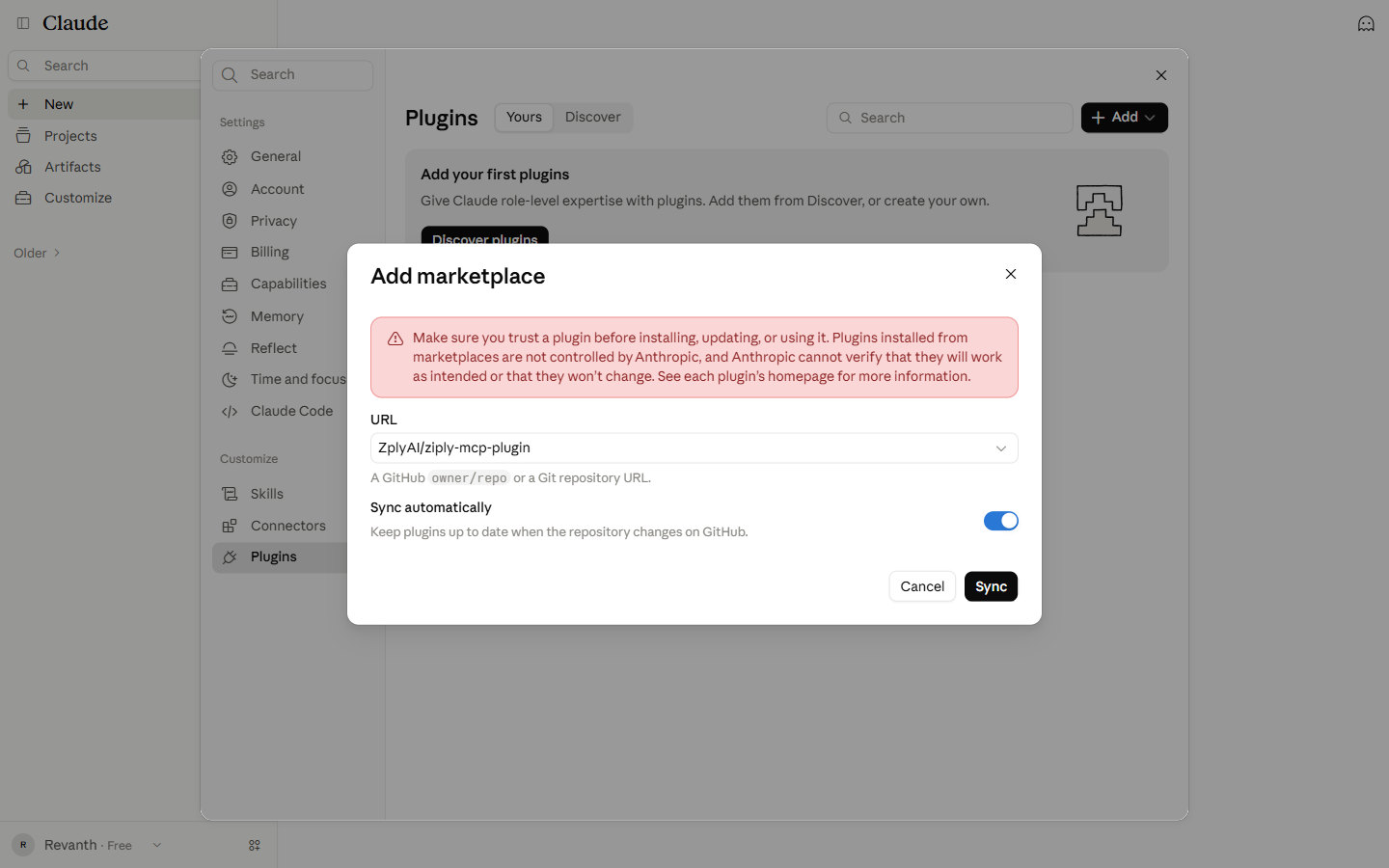
08Sync the repository
The URL field shows the repository name. Then click Sync and wait while Claude reads the repository.
-
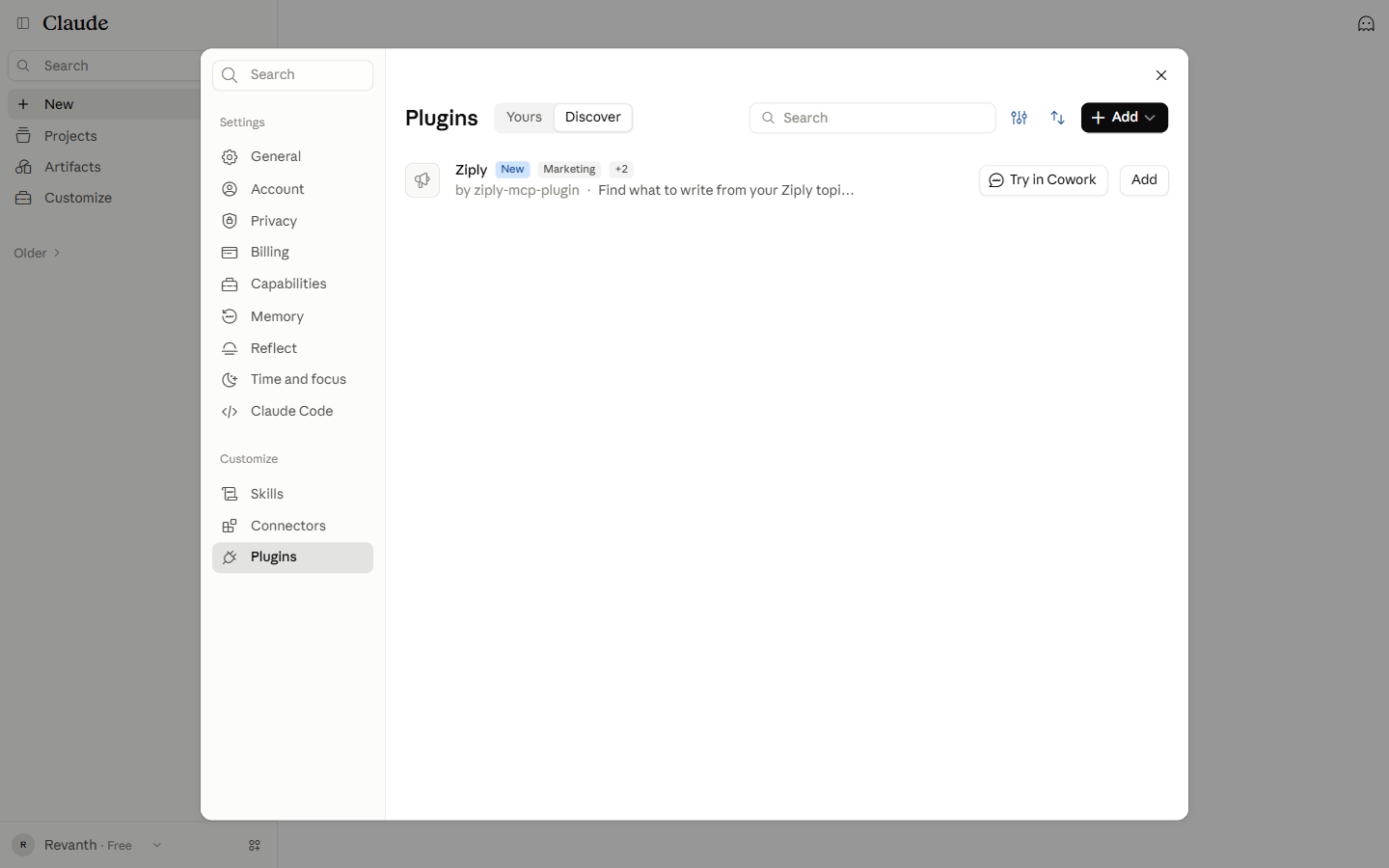
09Add the Ziply plugin
On the Discover tab, find Ziply and click Add.
-
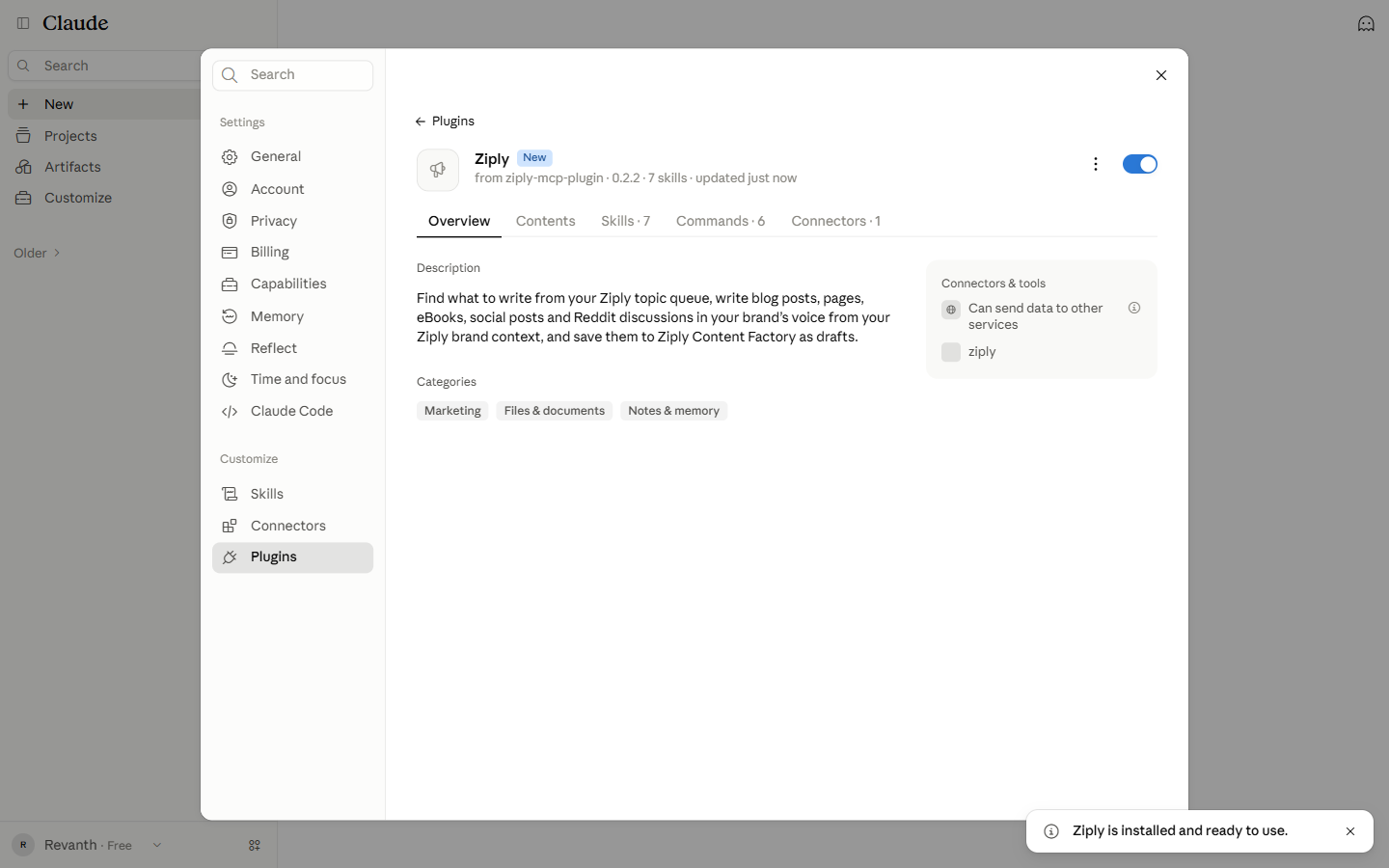
10Confirm Ziply is installed
A message shows Ziply is installed and ready to use.
-
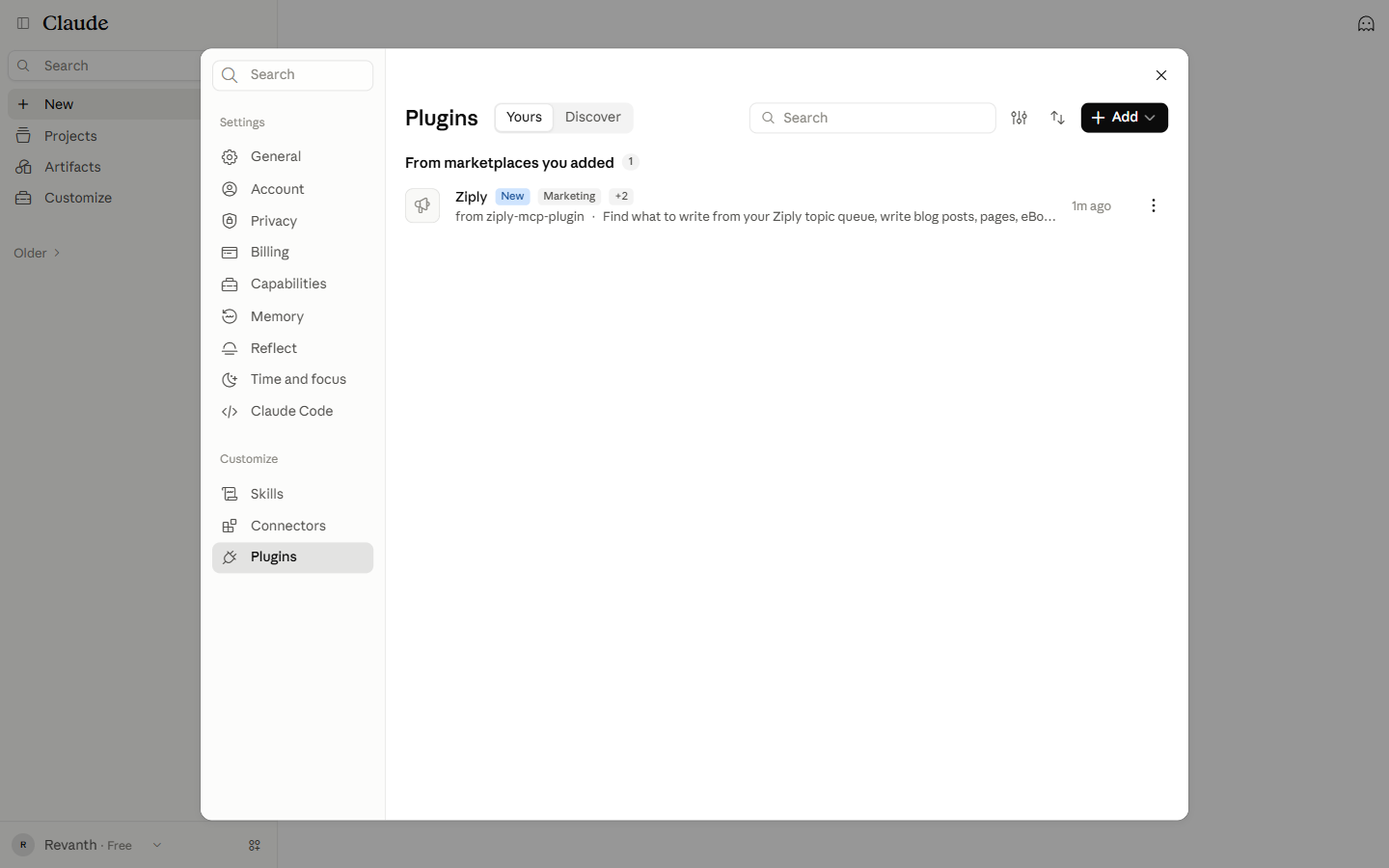
11Click the Yours tab
Click the Yours tab. Ziply is listed under From marketplaces you added.
-
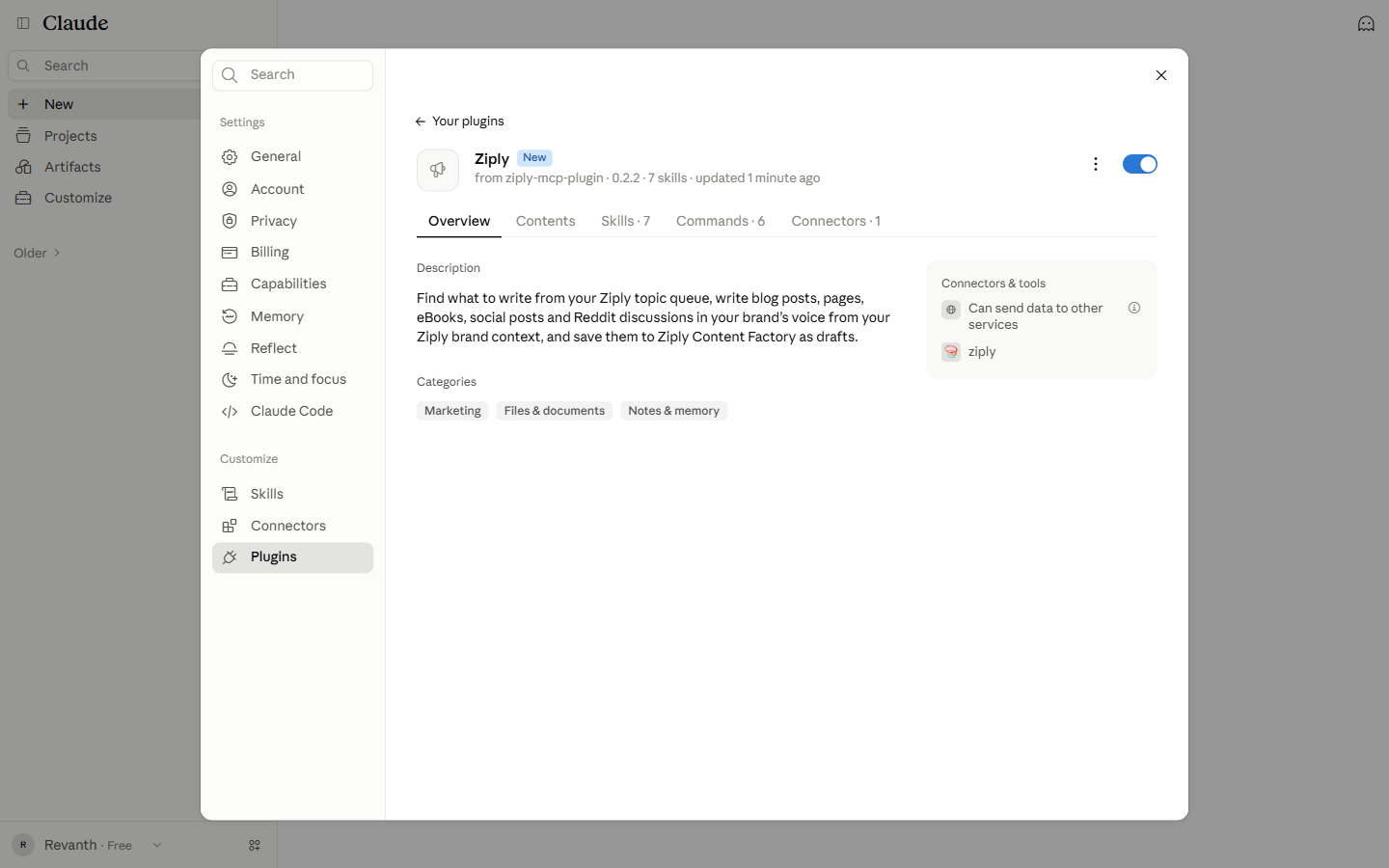
12Open the Ziply plugin
Click Ziply. The Overview tab shows the ziply connector.
-
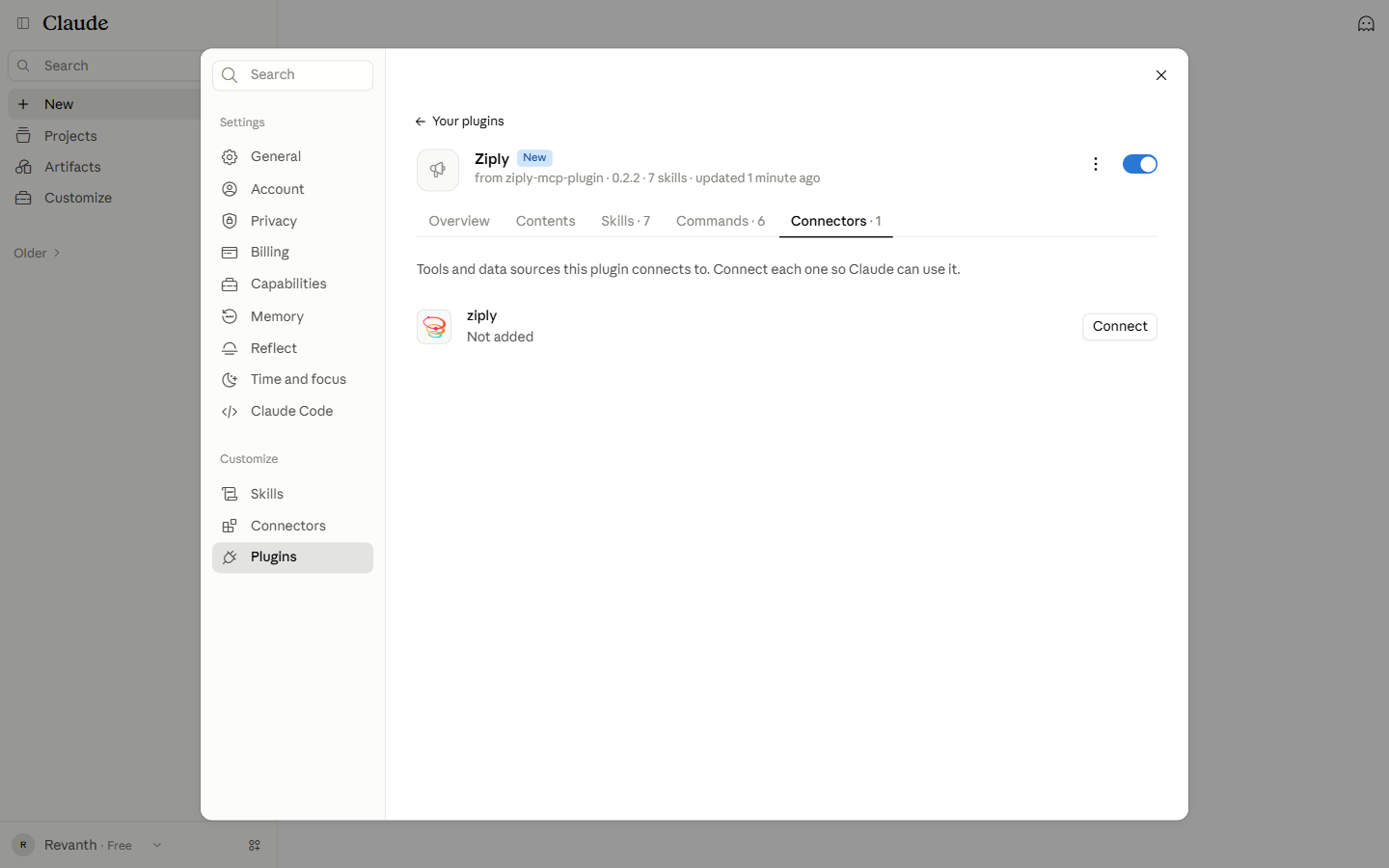
13Click Connect
Click the Connectors tab. Then click Connect next to the ziply connector.
-
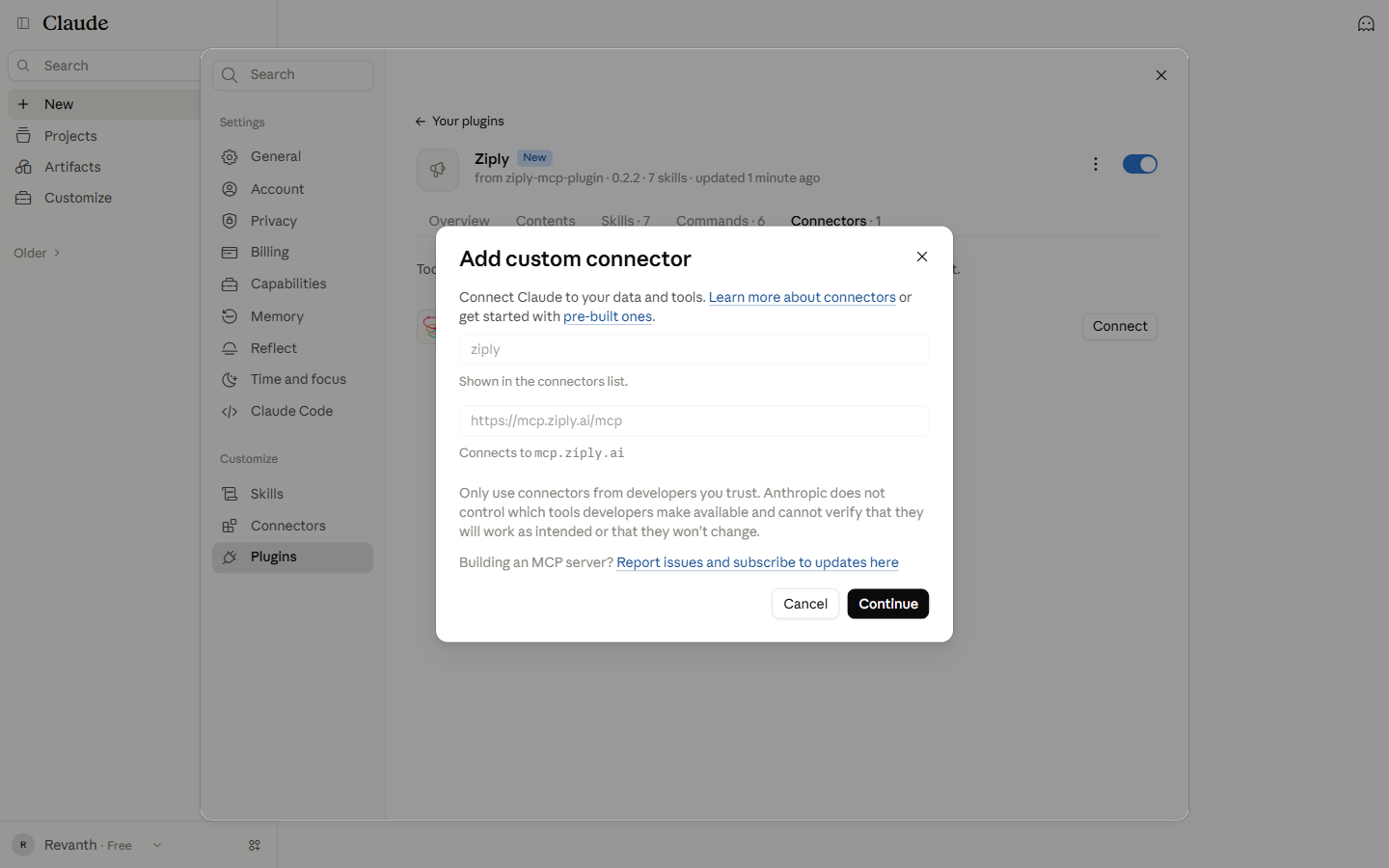
14Click Continue
The Add custom connector dialog opens. Keep the name and URL that are already filled in, then click Continue.
-
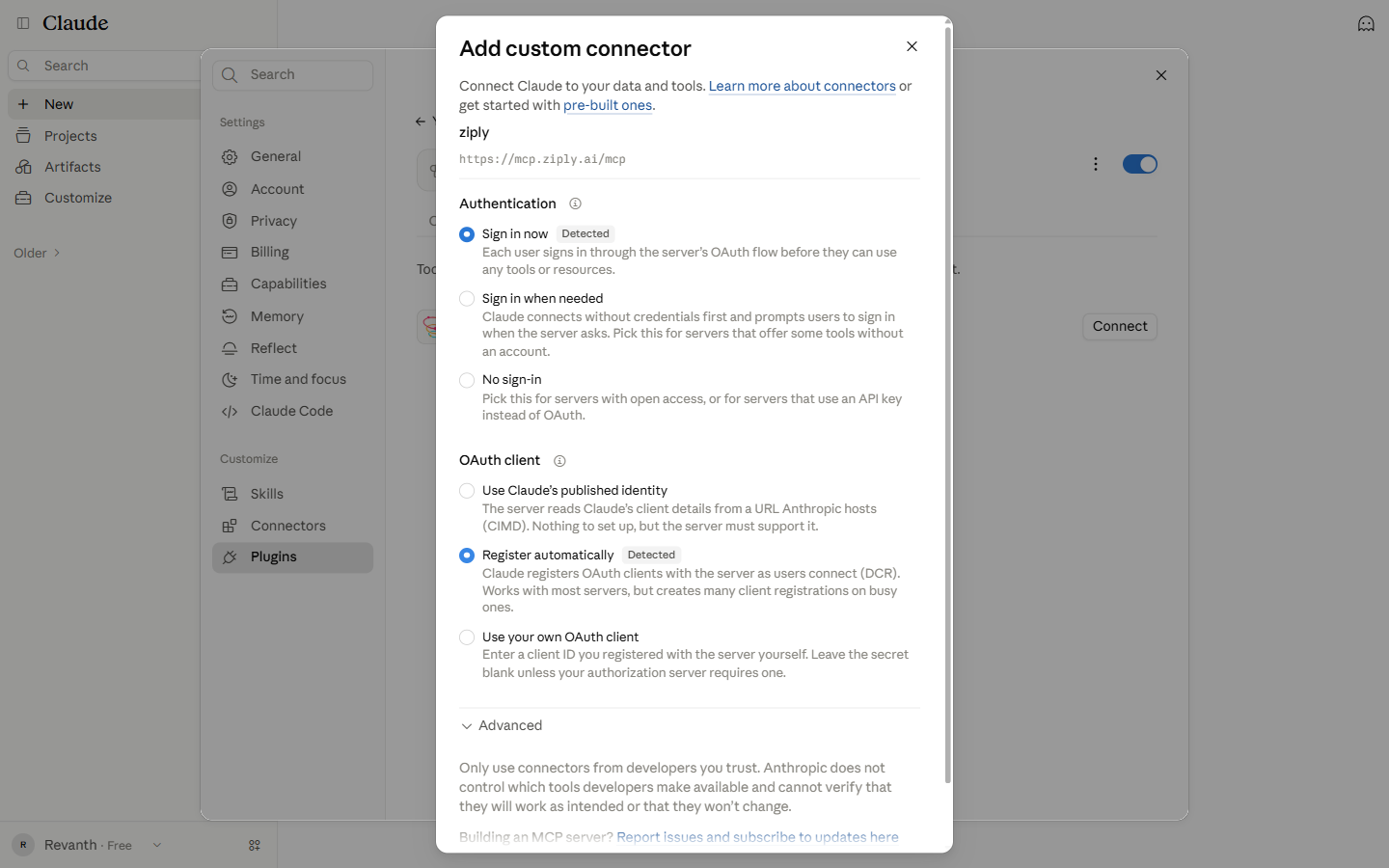
15Add the connector
Scroll to the bottom of the dialog and click Add.
-
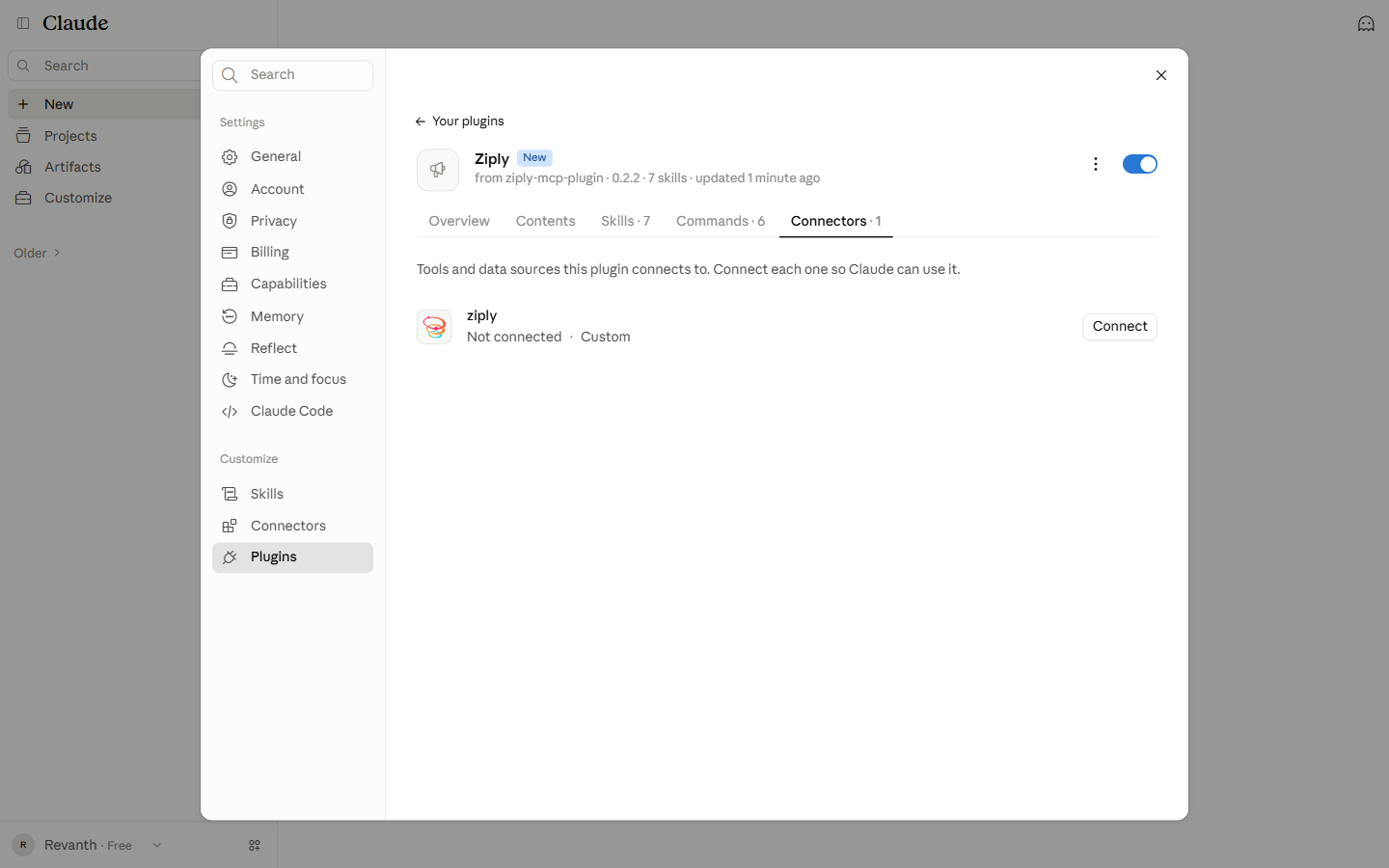
16Click Connect again
The connector shows Not connected. Click Connect to start the sign-in.
-
17Sign in to Ziply
Enter your Ziply email and password, then click Log in.
Optional: if you are already signed in to Ziply in this browser, skip this step.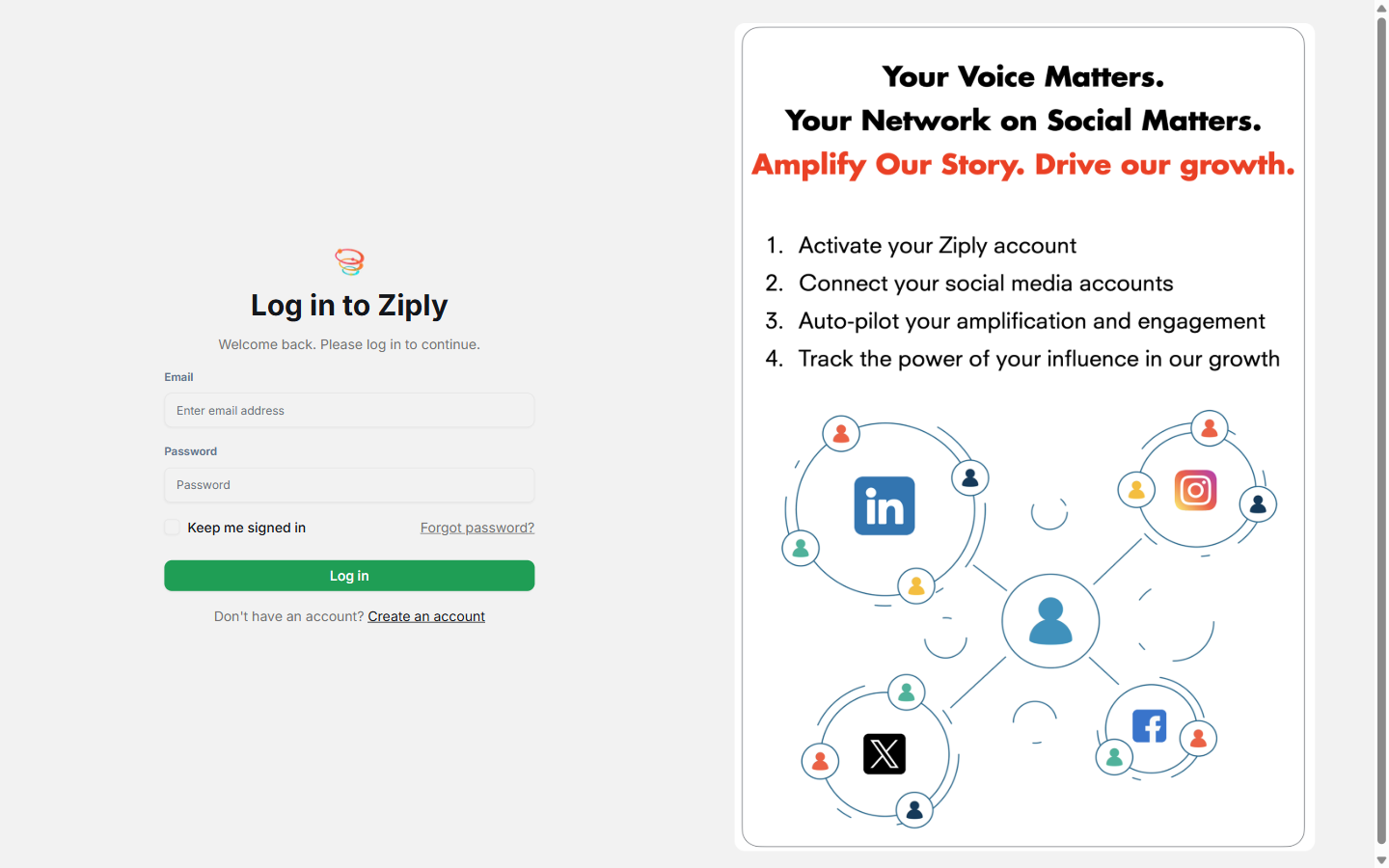
-
18Click Allow
Review the access that Ziply requests, then click Allow.

-
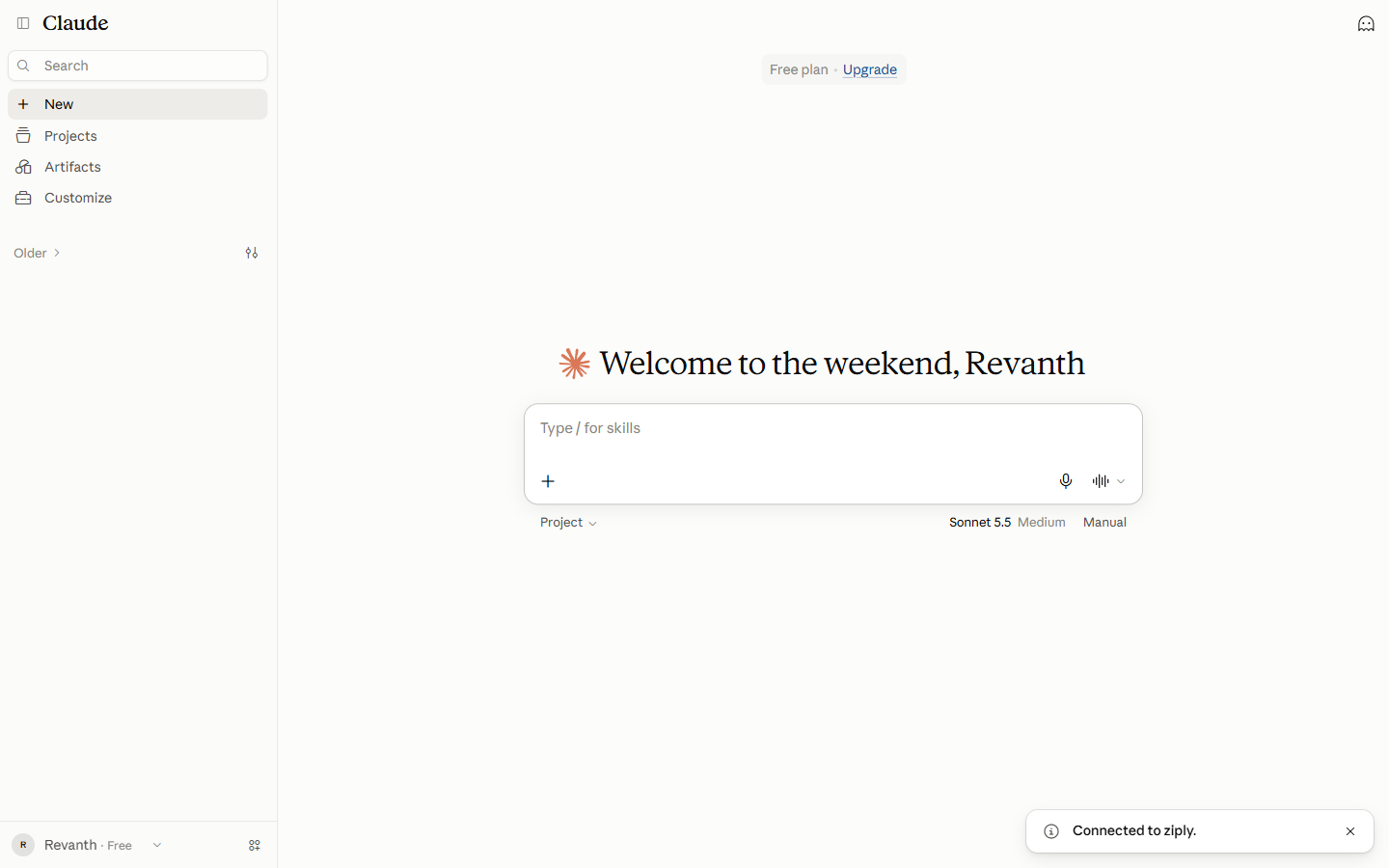
19Confirm the connection message
Claude shows the message Connected to ziply.
-
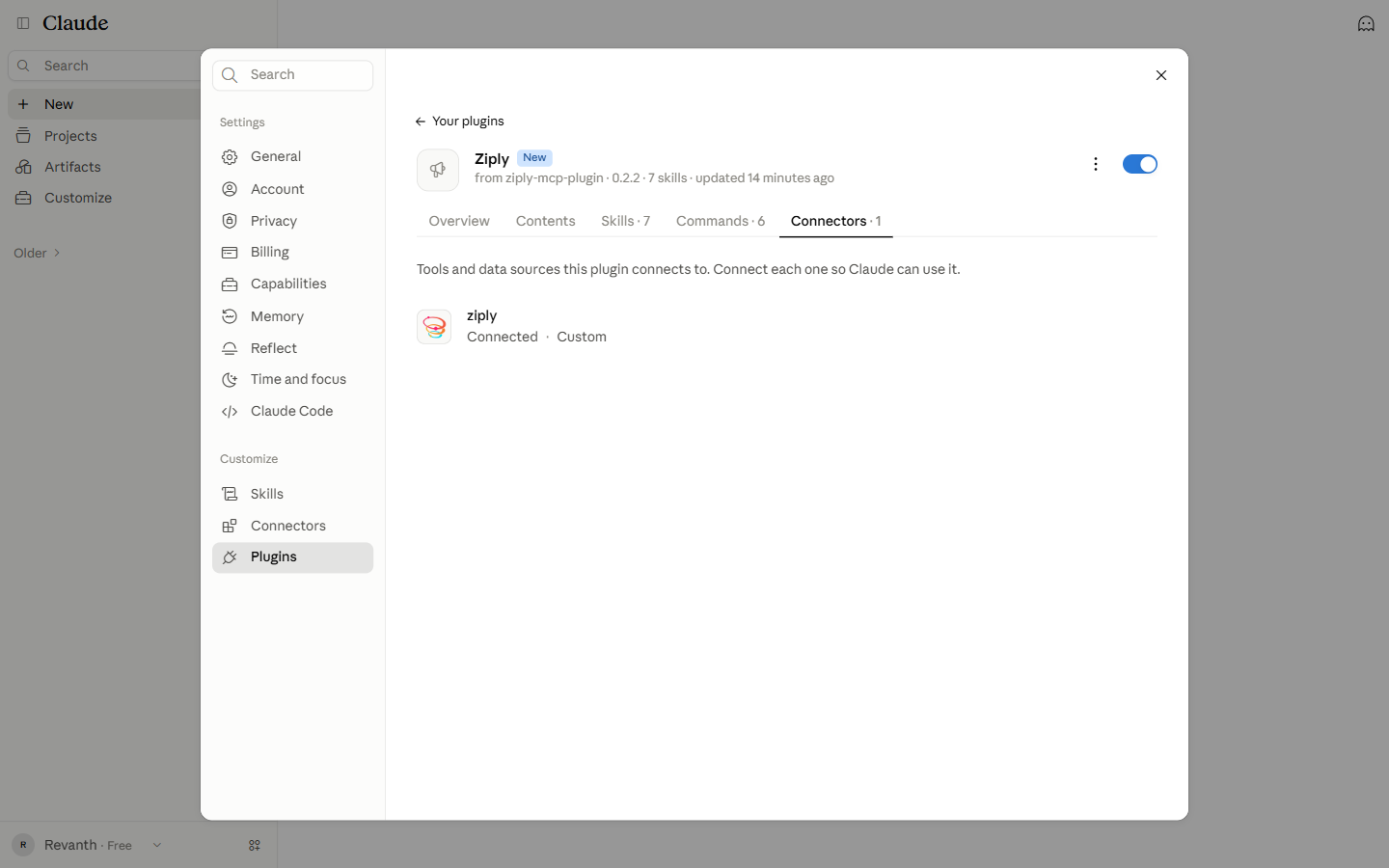
20Check the connection
The connector now shows Connected.
Using the plugin
Start a new chat and type: Is Ziply connected? You can also use these commands.
| Command | What it does |
|---|---|
/ziply:status | Checks the connection and summarizes your workspace |
/ziply:topics | Recommends what to write next |
/ziply:brief <topic> | Builds a research brief for a topic |
/ziply:social <idea> | Writes social posts from an idea |
/ziply:reddit <idea> | Starts a Reddit discussion from an idea |
/ziply:push | Saves the conversation to Ziply |