Install the Ziply plugin in the ChatGPT desktop app
Add the Ziply plugin to ChatGPT and connect it to your Ziply account in a few minutes.
On this page
Before you start
- Install the ChatGPT desktop app on your computer.
- Sign in to the ChatGPT desktop app. Your plan must include plugins.
- Keep your Ziply account email and password ready.
Where it works
- Work
- Codex
The Ziply plugin works in Work and Codex in the ChatGPT desktop app. It does not work in the IDE extension.
-
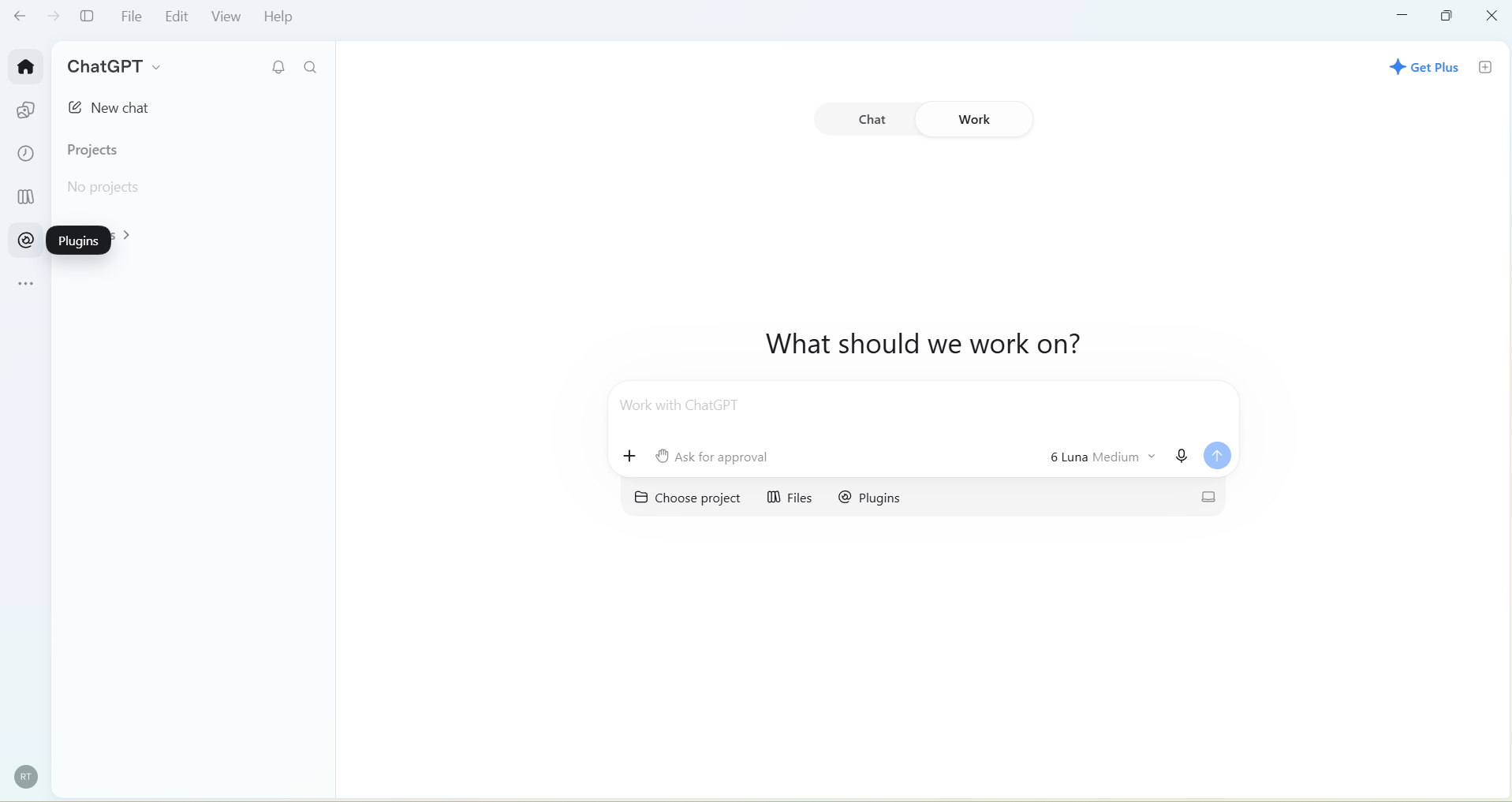
01Open Plugins
Click the Plugins icon in the left sidebar. The Plugins page opens.
-
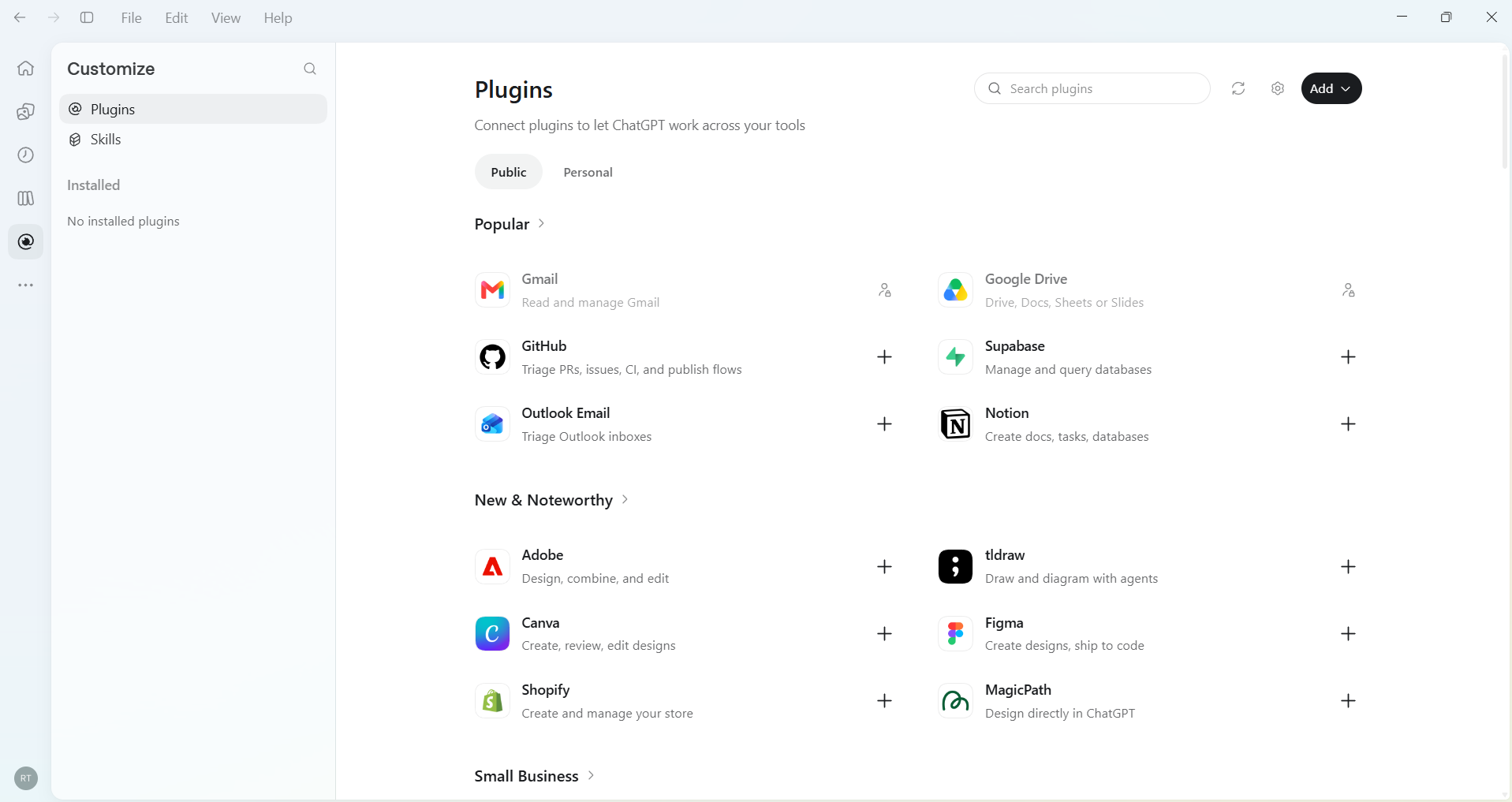
02Click Add
Click Add at the top right of the Plugins page. A menu opens.
-
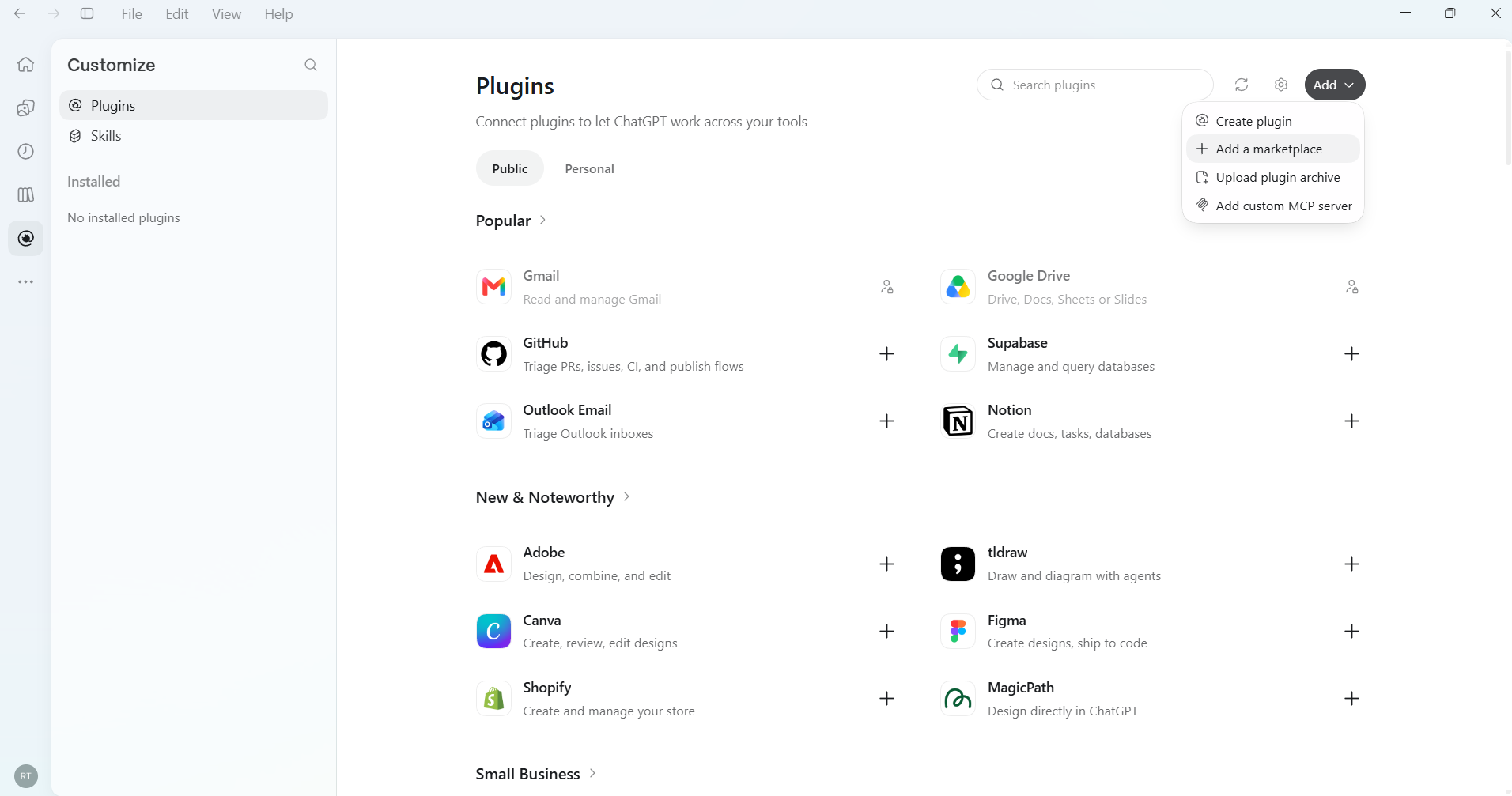
03Click Add a marketplace
Click Add a marketplace in the menu. The Add plugin marketplace dialog opens.
-
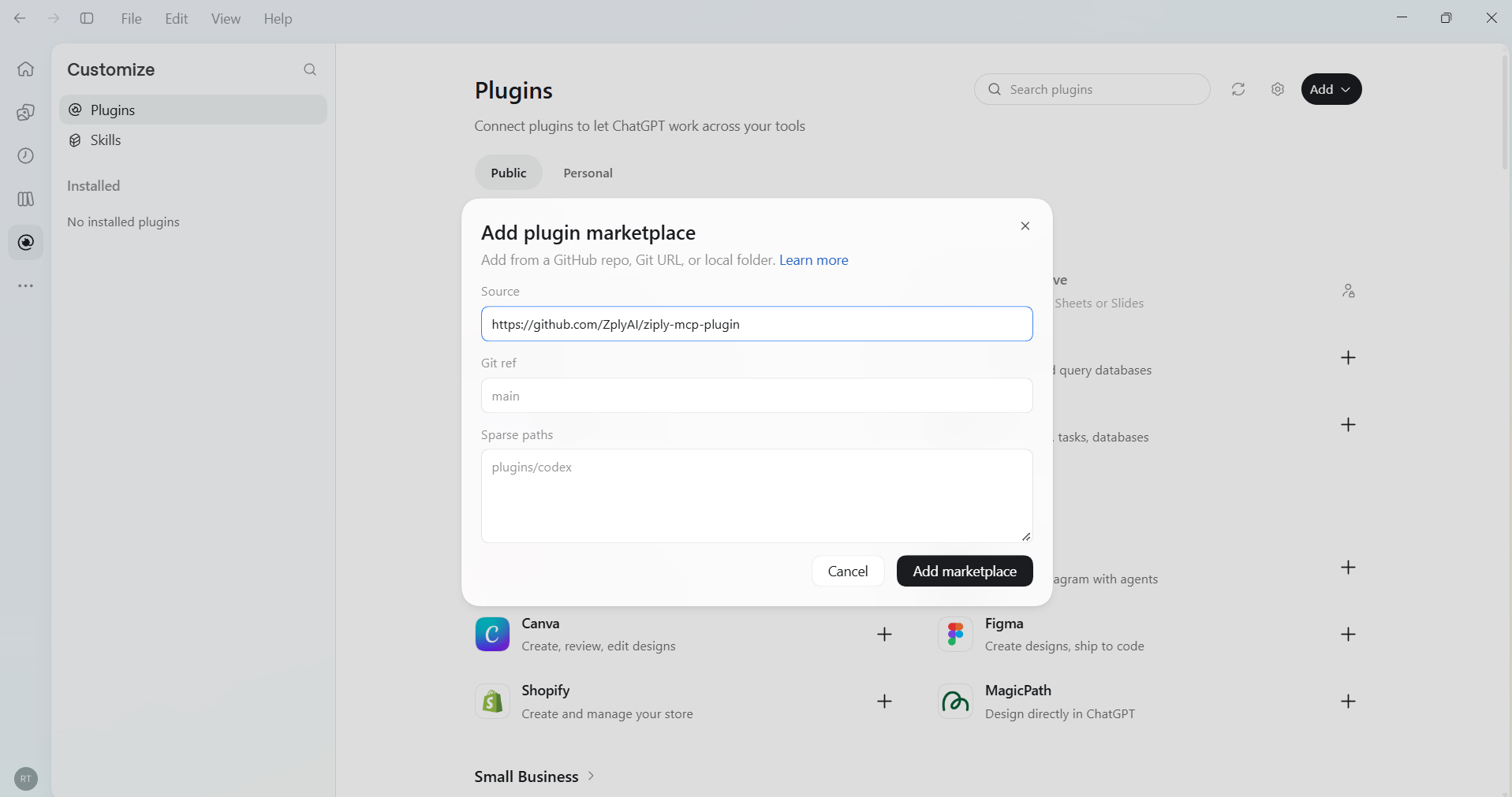
04Paste the repository link
Paste the repository link into Source.
Leave Git ref and Sparse paths empty, then click Add marketplace.
-
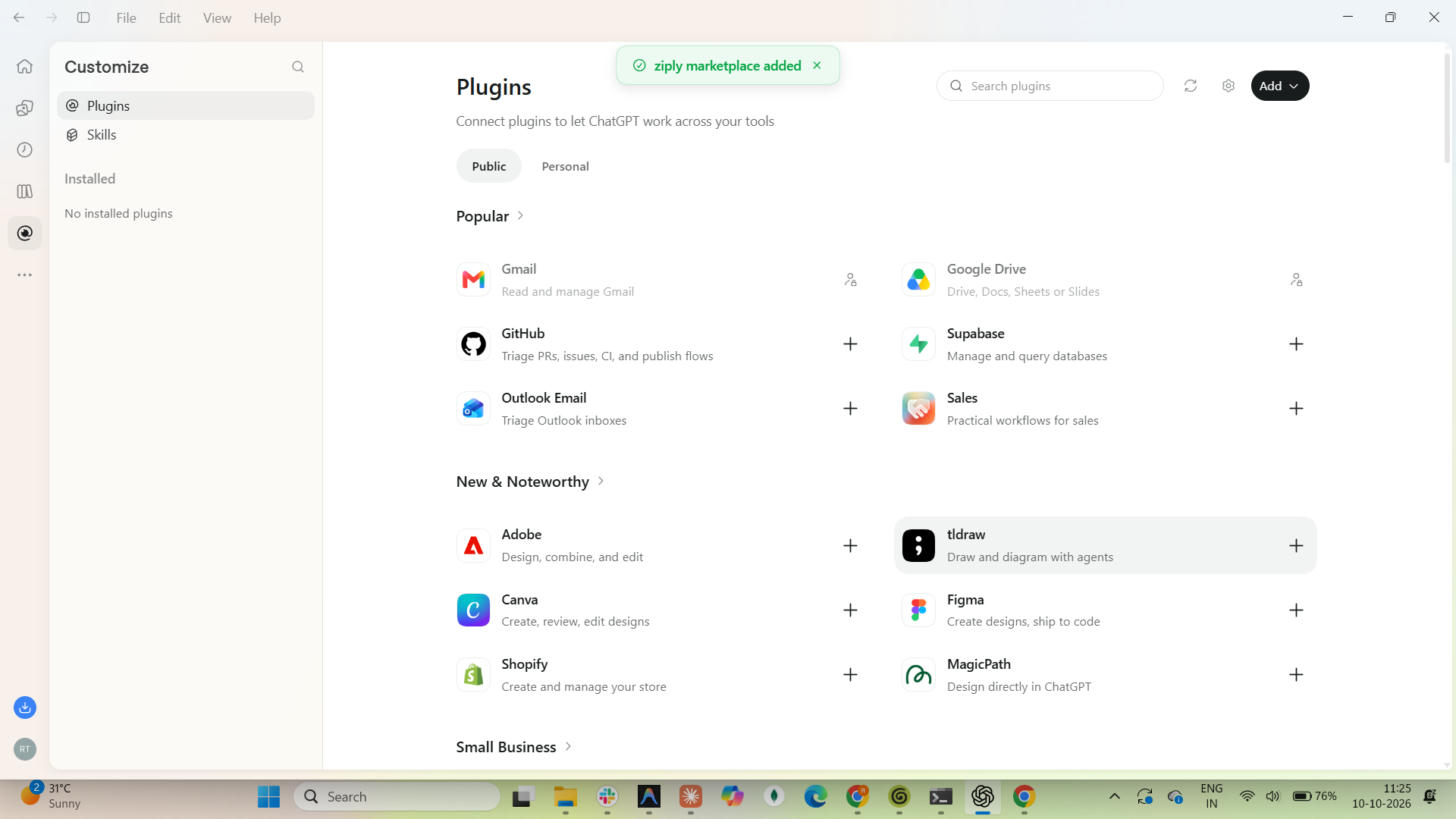
05Confirm the marketplace was added
A message shows ziply marketplace added.
-
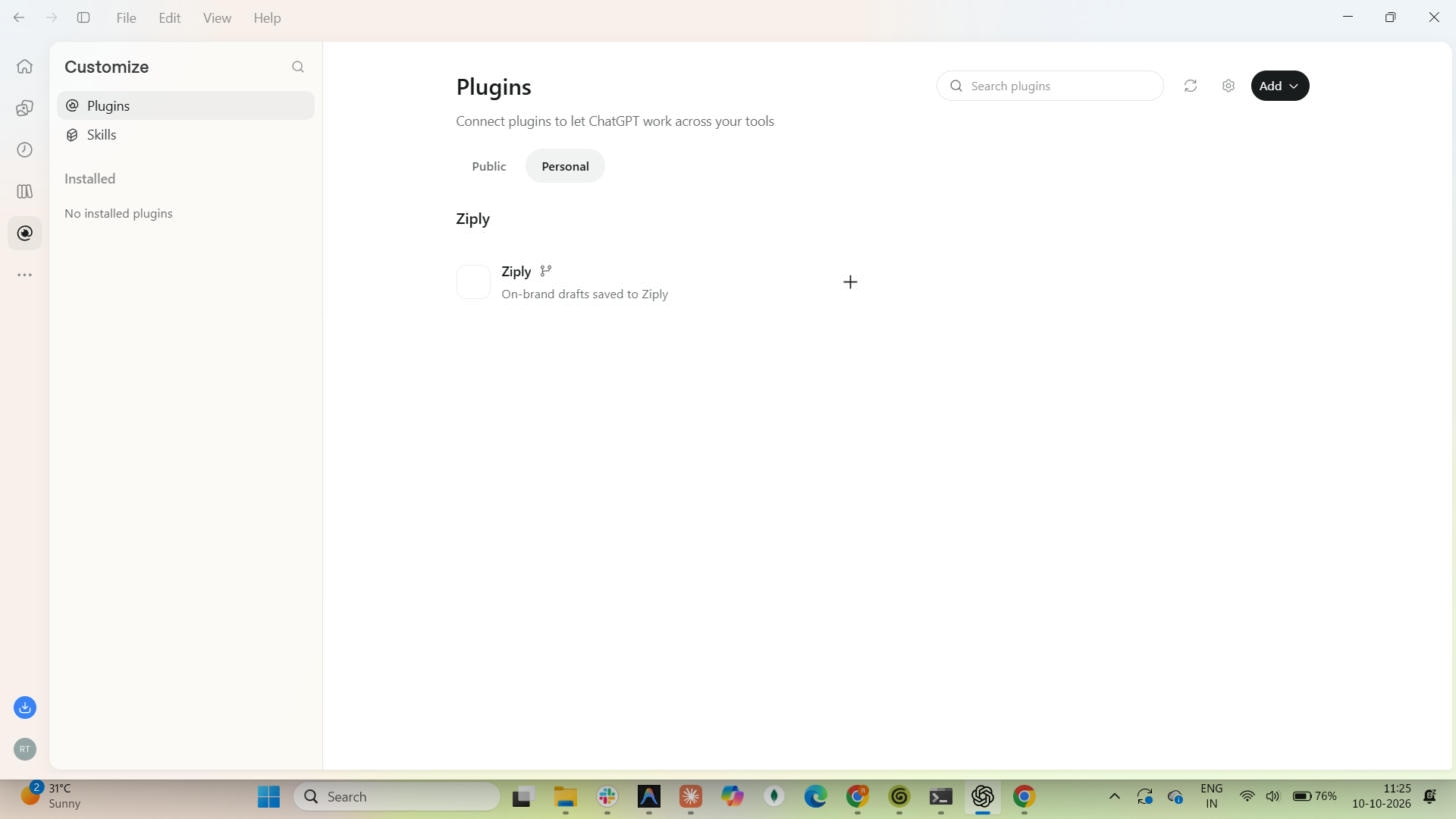
06Install the Ziply plugin
Click the Personal tab. Then, under the Ziply heading, click + next to the plugin.
-
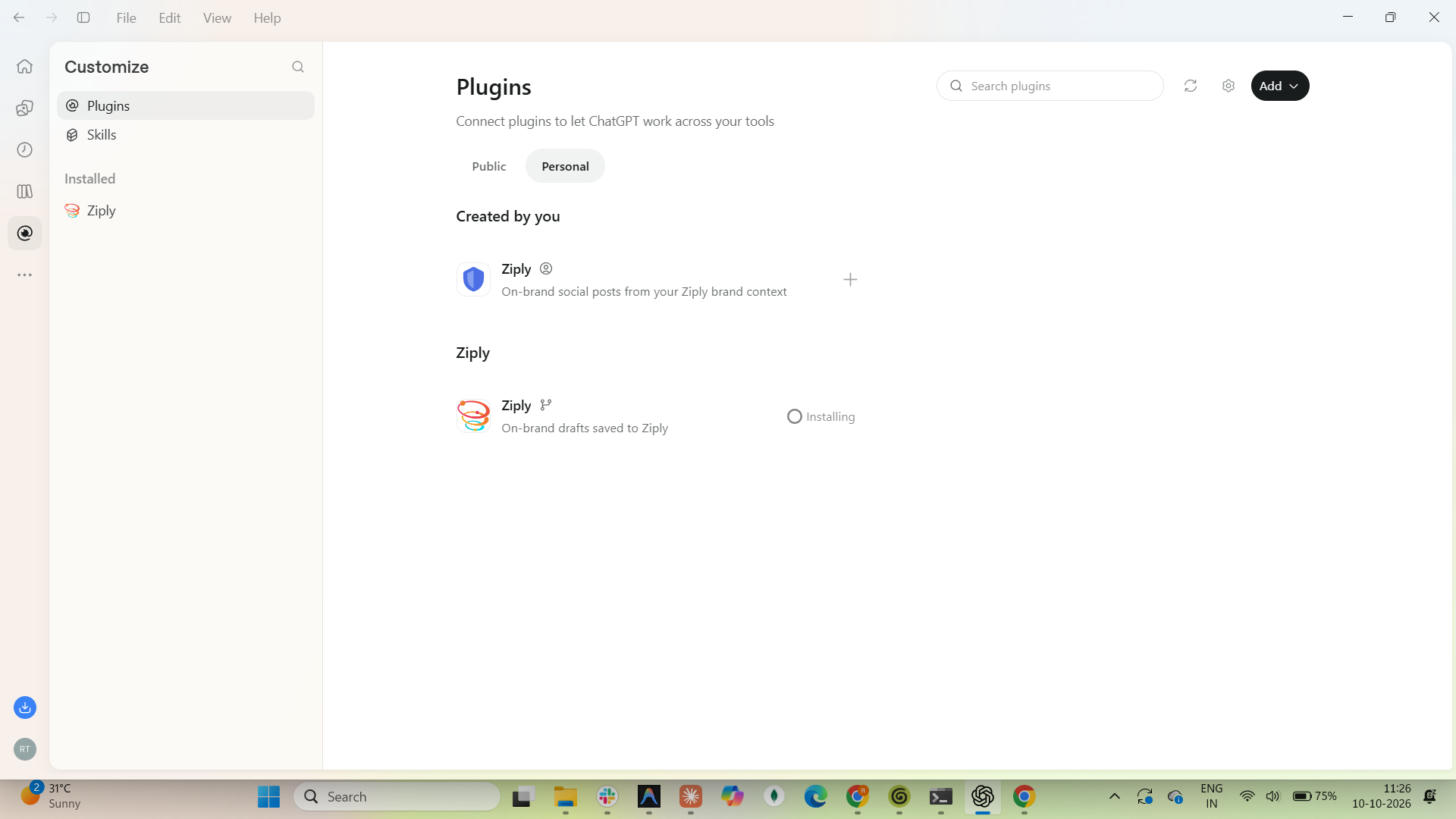
07Wait while Ziply installs
Wait while the status shows Installing.
-
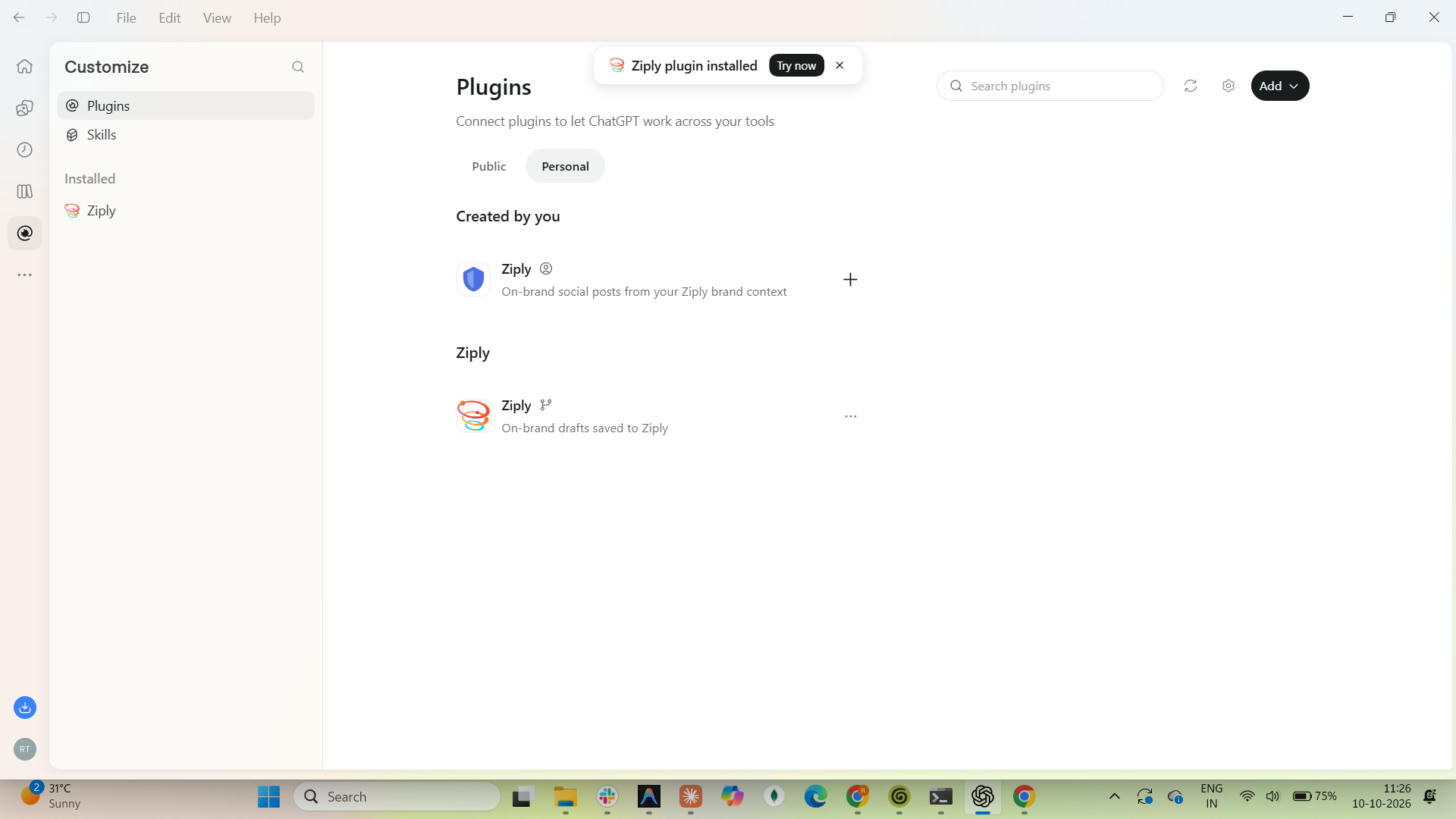
08Wait for the installation
Wait until the message Ziply plugin installed appears. Ziply is then listed under Installed in the sidebar.
-
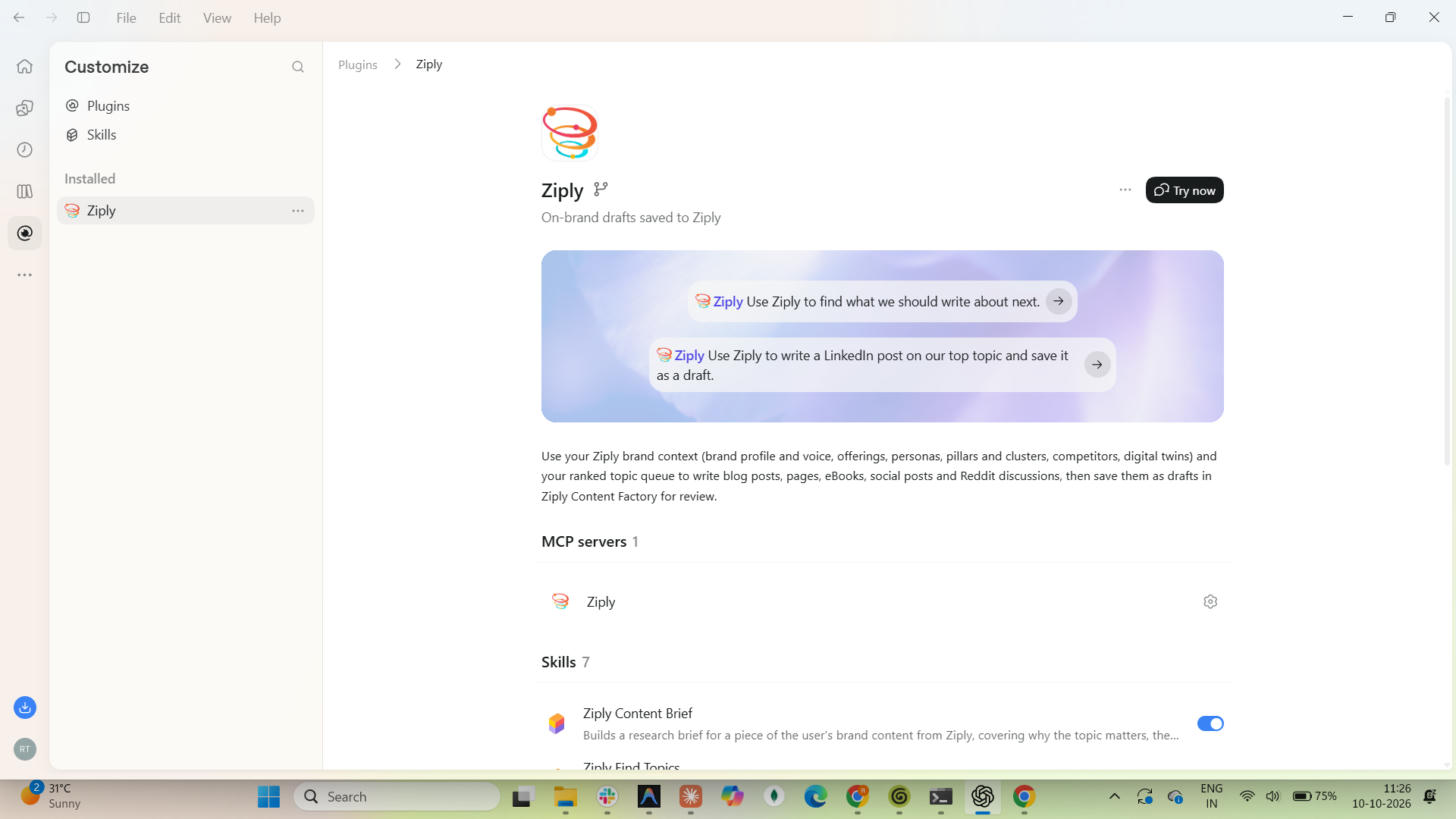
09Open the Ziply plugin
Click Ziply in the sidebar. The plugin page shows one MCP server and 7 skills.
-
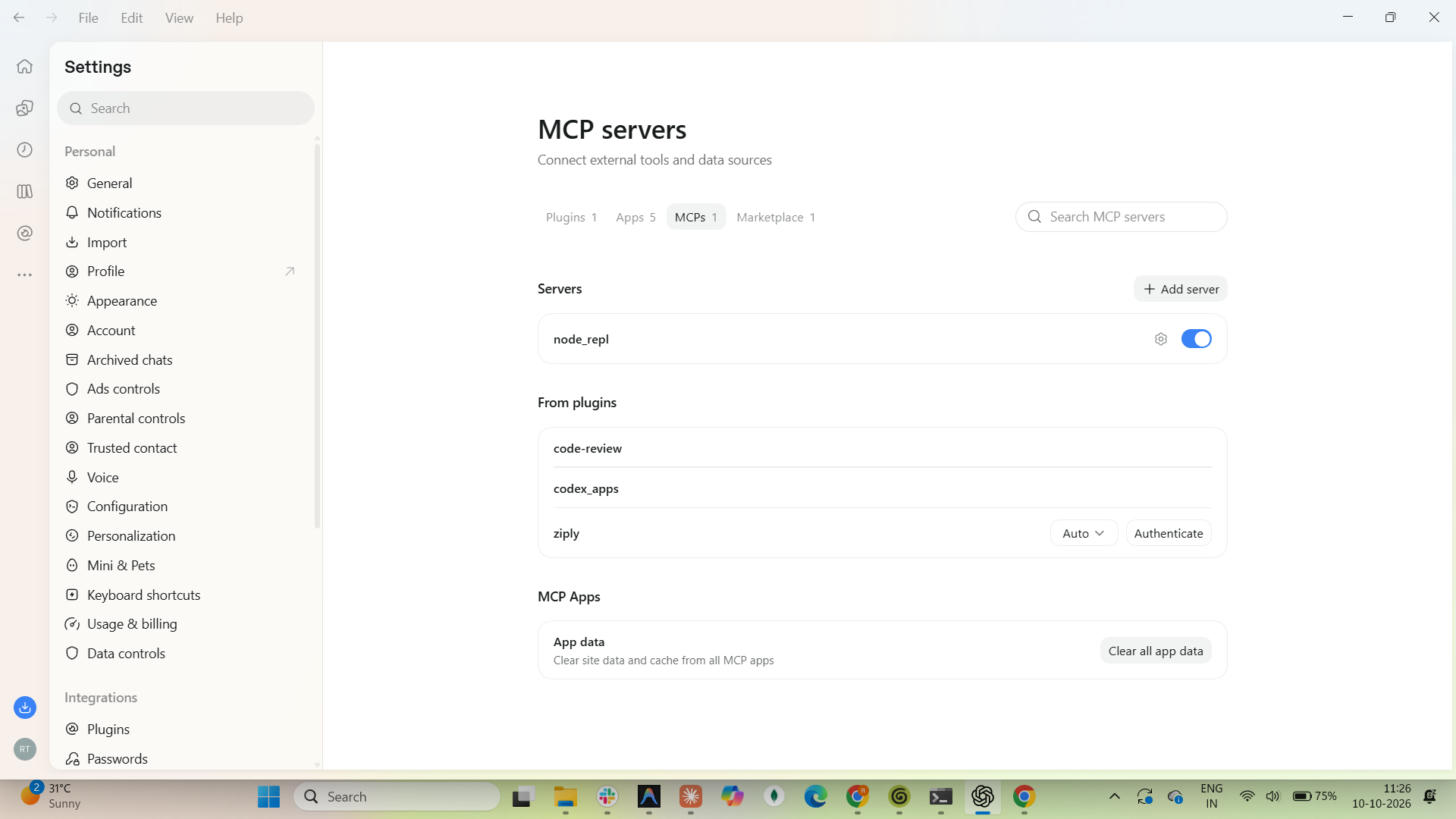
10Click Authenticate
Click Authenticate on the ziply row.
-
11Sign in to Ziply
Your browser opens the Ziply sign-in page. Enter your Ziply email and password, then click Log in.
Optional: if you are already signed in to Ziply in this browser, skip this step.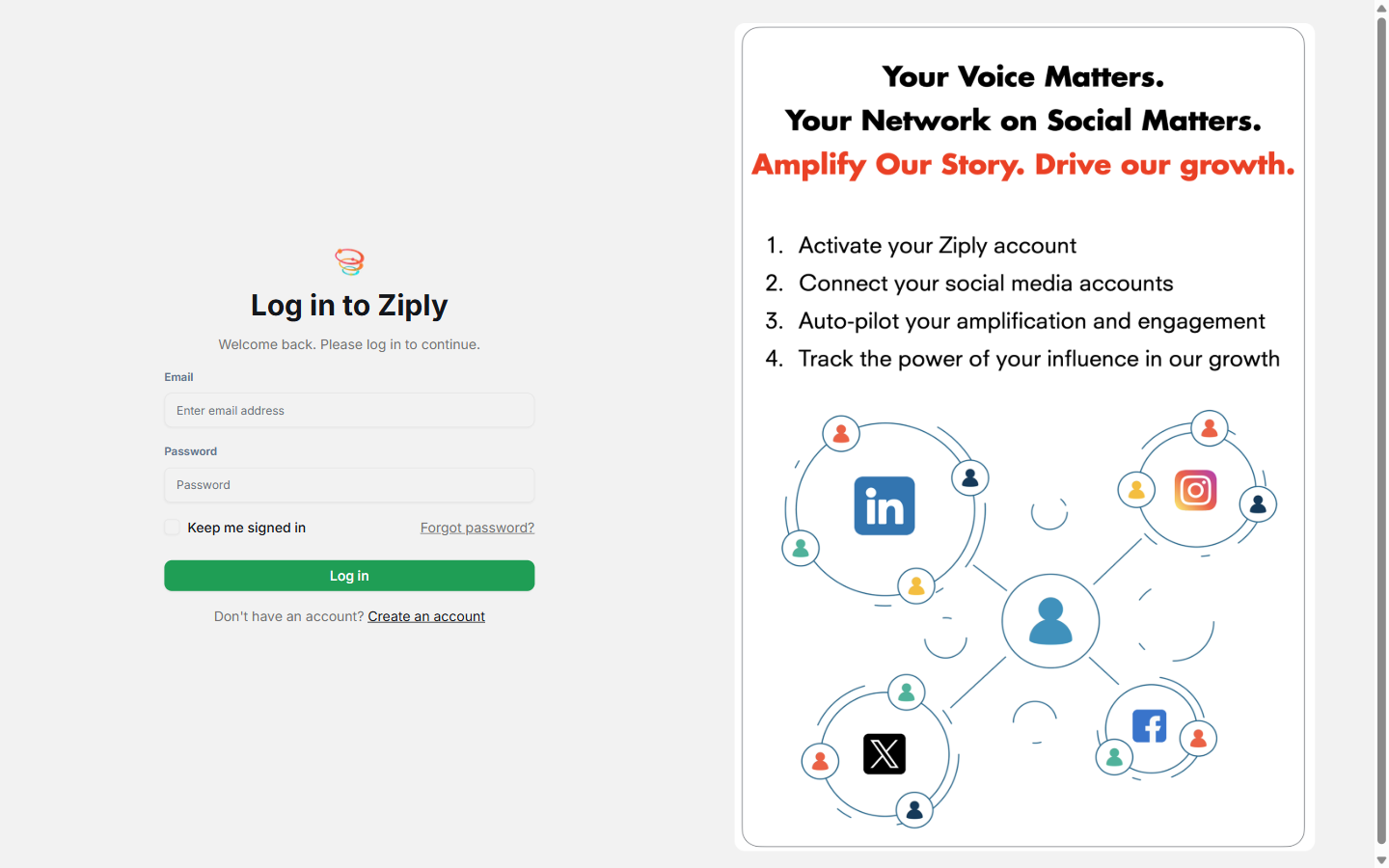
-
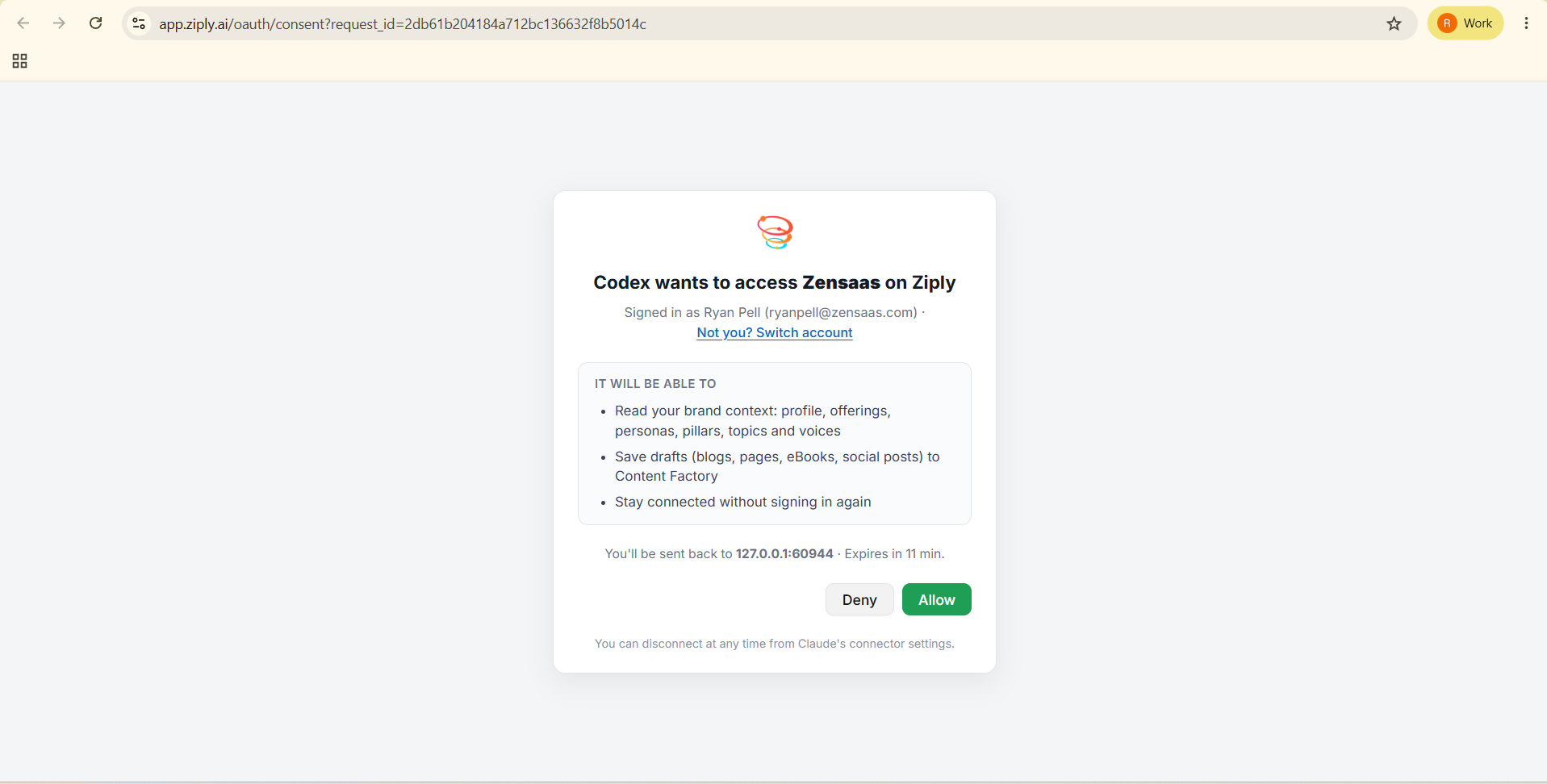
12Click Allow
Review the access that Ziply requests, then click Allow.
-
13Close the browser tab
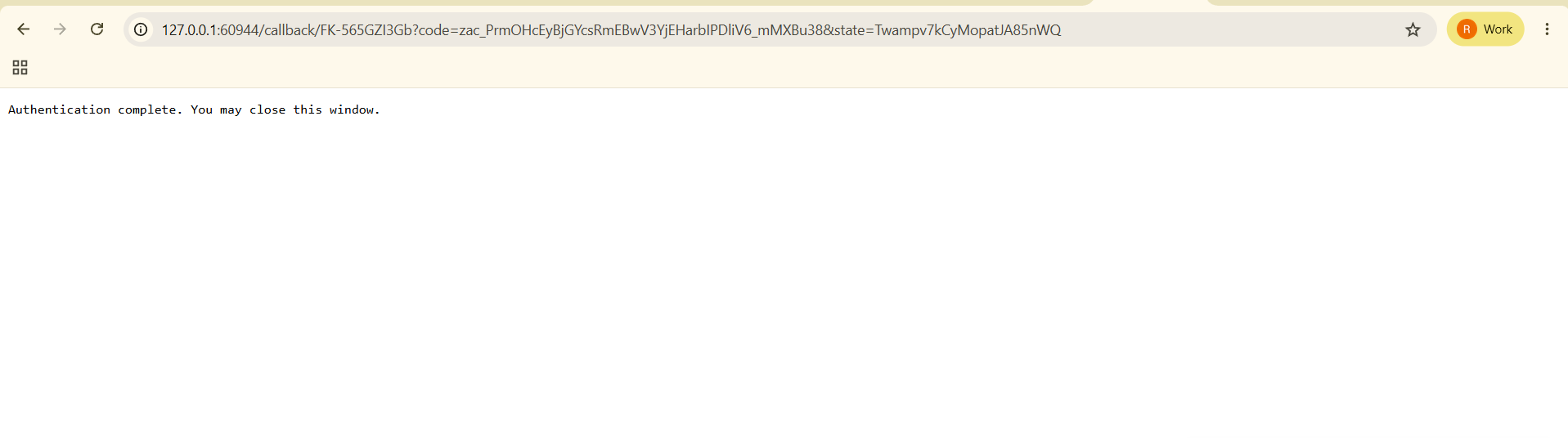
When the message Authentication complete appears, close the browser tab.
-
14Check the connection
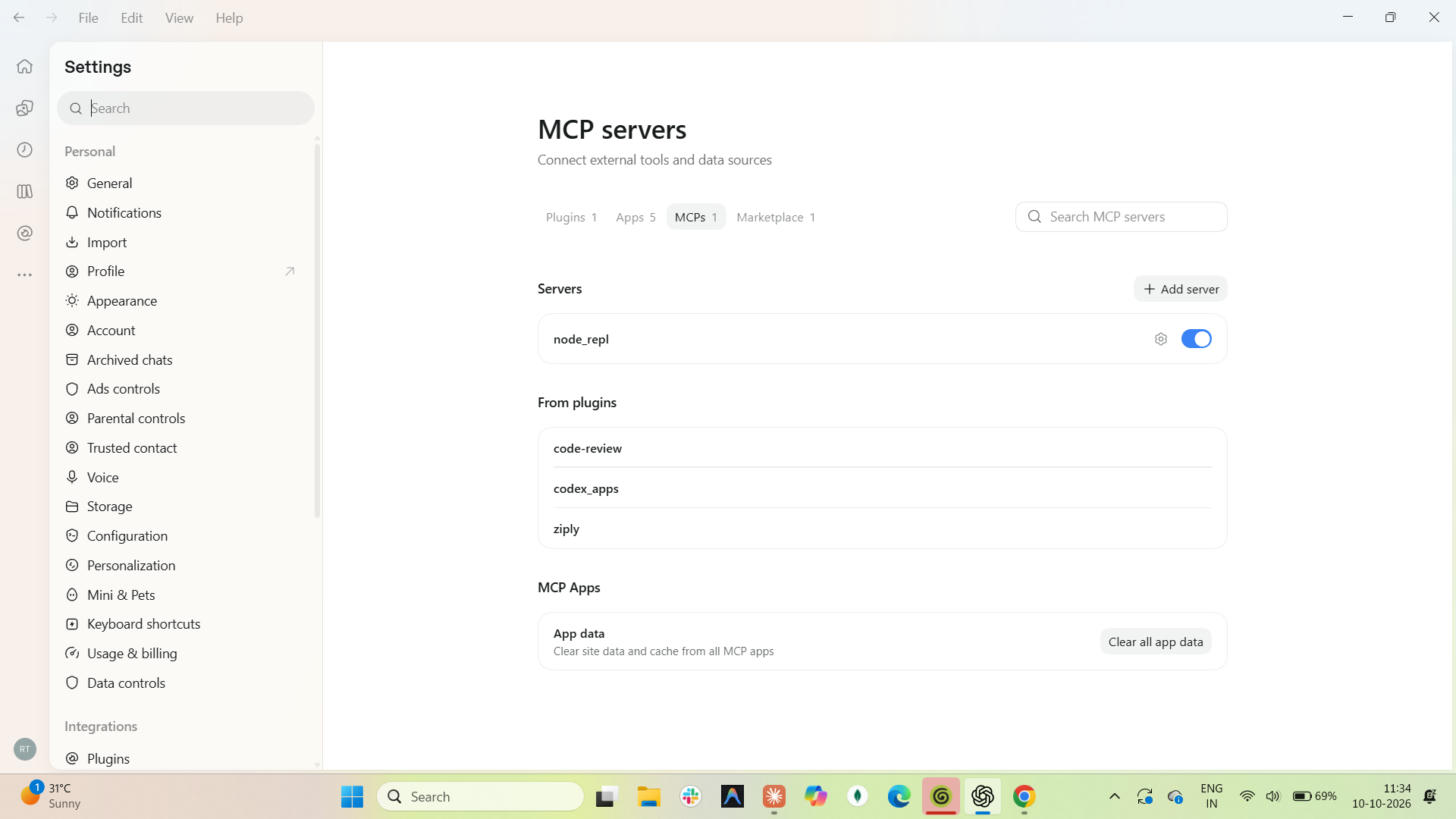
Return to the ChatGPT desktop app. The ziply row no longer shows Authenticate, which means the plugin is connected.
Using the plugin
Open a new chat and type: Is Ziply connected?